.avif)
11 Best Notion Project Management template That Work in 2026

Notion project management templates make it much easier to stay on top of your work in 2026. Without a clear system, tasks get missed, deadlines creep up, and everything feels harder than it should. The right Notion project management template fixes this fast. Instead of building from scratch, you can duplicate a proven setup and start organizing projects in minutes.
.avif)
Table of content
- Notion Second Brain template
- Notion Project Tracker template
- Notion Productivity Dashboard
- Project Tracker Notion template
- Project Manager Notion template
- Universal Project Management Notion template
- Notion Project Manager template
- Notion Project Management template
- Notion Project Manager by Hashim
- Notion Projects Manager template by SimoNotion
- Notion Project Management template
- How to Build a Simple Projects Management Template in Notion
11 Best Notion Project Management Templates
Below are the best Notion project management templates I’d actually use. Each template below is selected based on its features, real user reviews, and how well it works in practice.
1. Notion Second Brain template (⭐️ Recommended)
Notion Second Brain has a built in project management template, this makes sense for me when I want one system to manage projects, tasks, notes, and goals together. I’d reach for this when my work and personal projects start overlapping and I need structure without jumping tools.
Key features:
- P.A.R.A. system: Organizes projects, areas, resources, and archives clearly
- Inbox capture: Quick place to dump tasks and ideas before sorting
- Weekly review: Built-in review flow to keep projects on track
.avif)
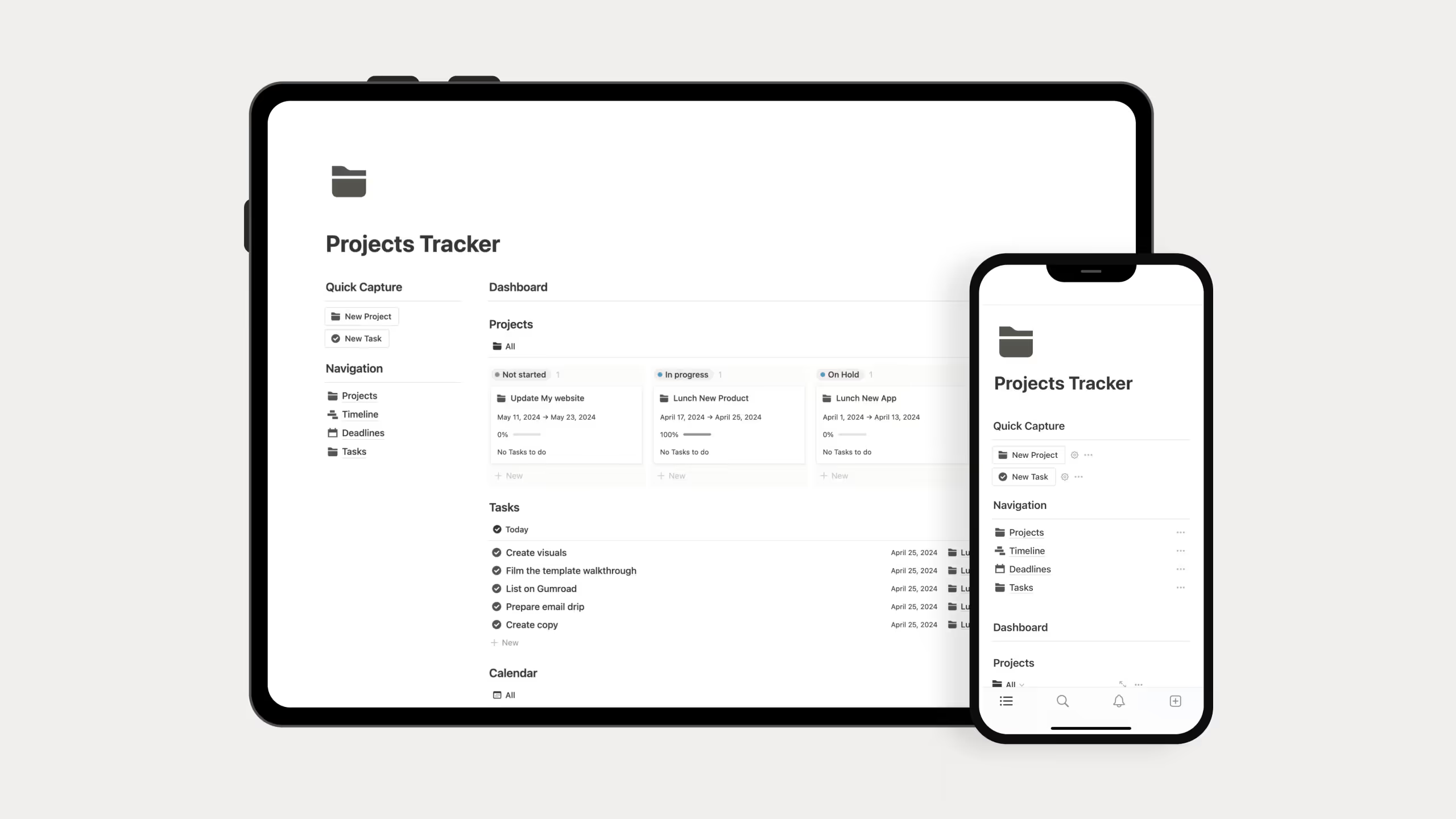
2. Notion Project Tracker template (Free)
This template is one of the more approachable Notion project management templates for beginners. I’d use this when I want project visibility without committing to a complex system.
Key features:
- Project status tracking: See progress at a glance
- Project deadlines: Track deadlines for each project.
- Task tracker: Tasks stay tied to projects without extra setup
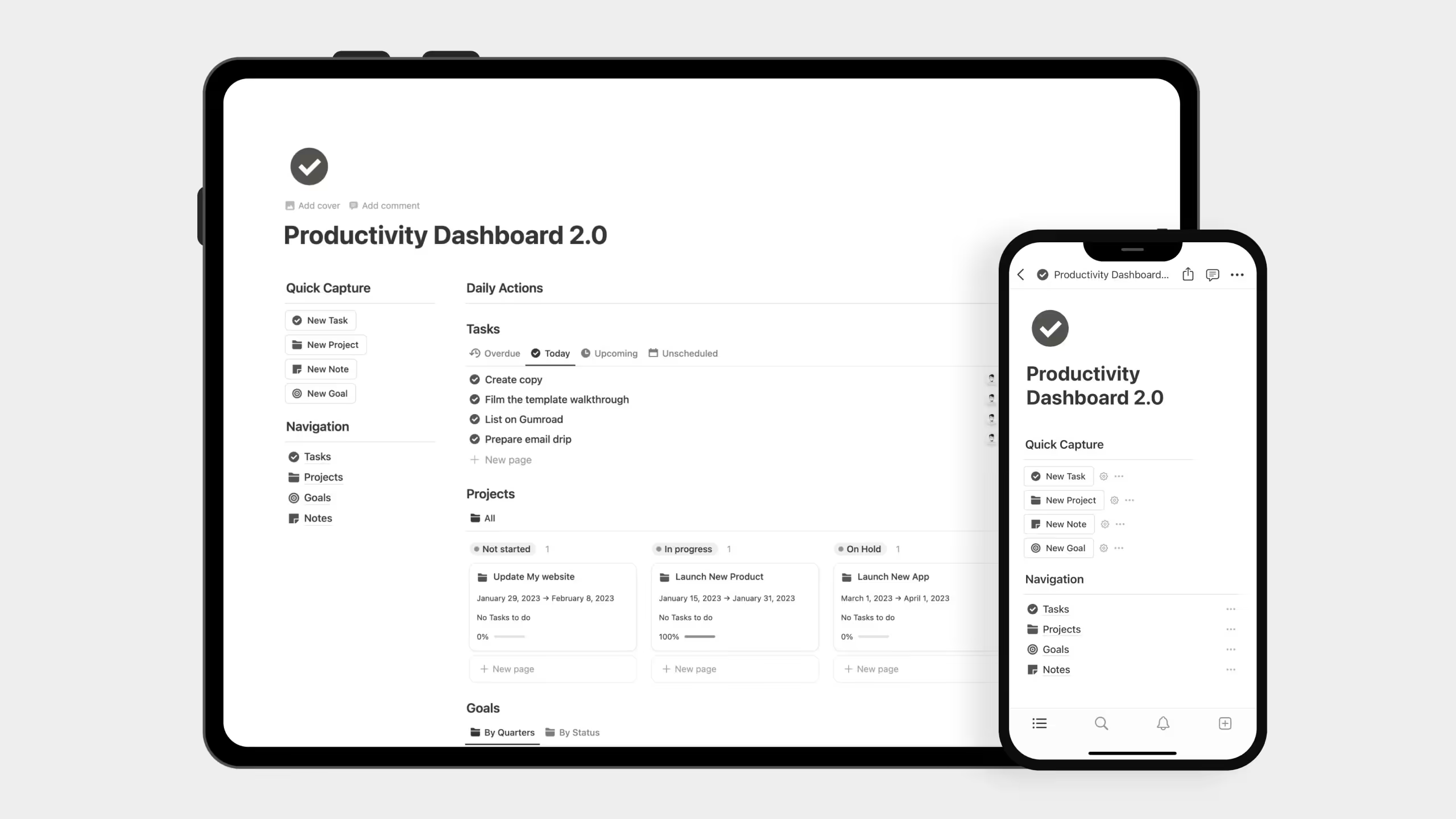
3. Notion Productivity Dashboard template
I like this Notion project management template because it removes setup friction completely. I’d personally pick this when I want everything working immediately without customizing databases.
Key features:
- Projects: Monitor progress and keep track of deadlines.
- Tasks: Divide projects into actionable, manageable steps.
- Goals: Define milestones and track achievement over time.
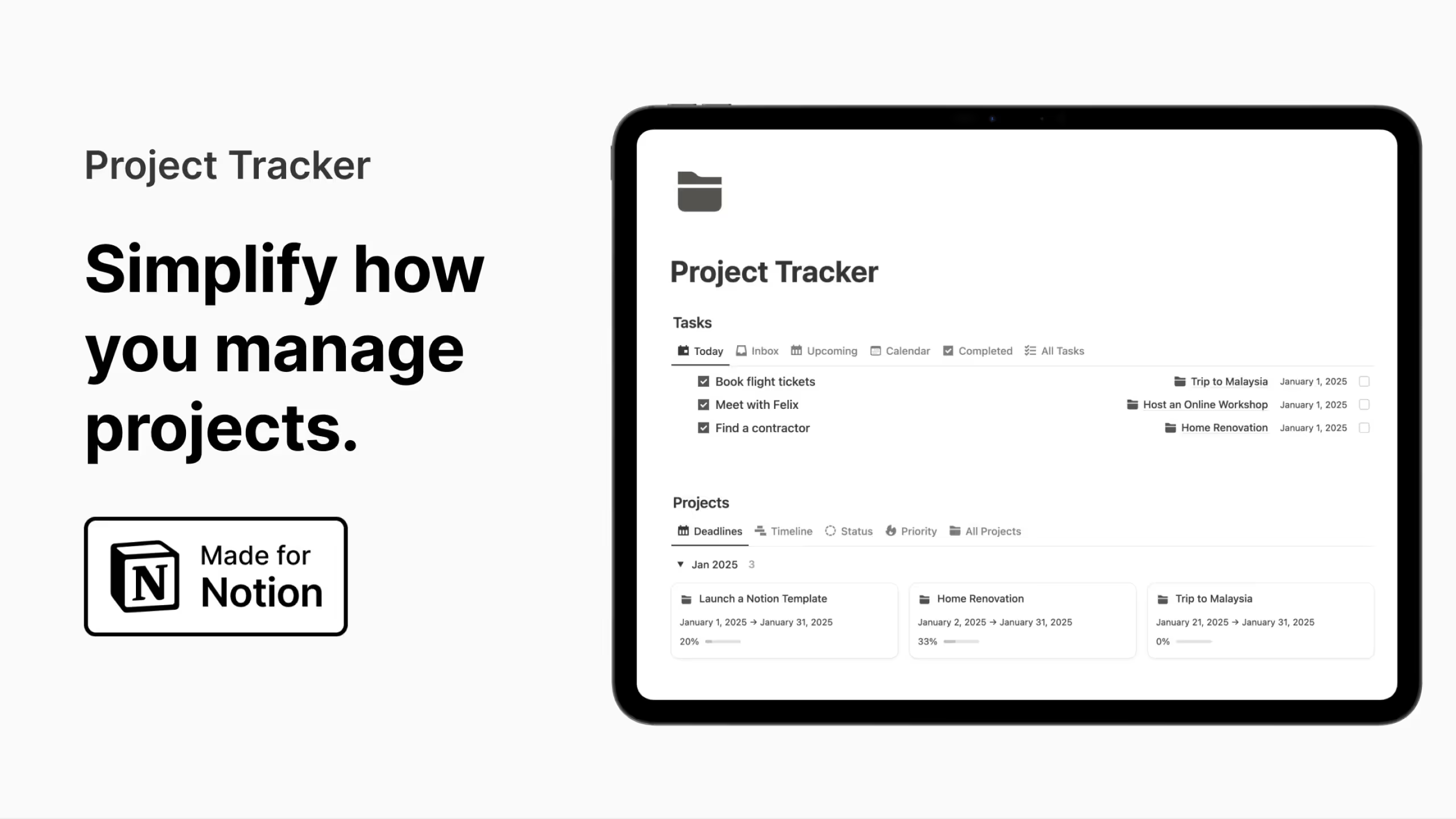
4. Project Tracker Notion template (Free)
Among minimalist Notion project management templates, this one feels the cleanest. This makes sense for me when I want to manage active projects without visual clutter.
Key features:
- Two connected databases: Projects and tasks only
- Single-page layout: Everything accessible without digging
- Clear next steps: Easy to see what to do next
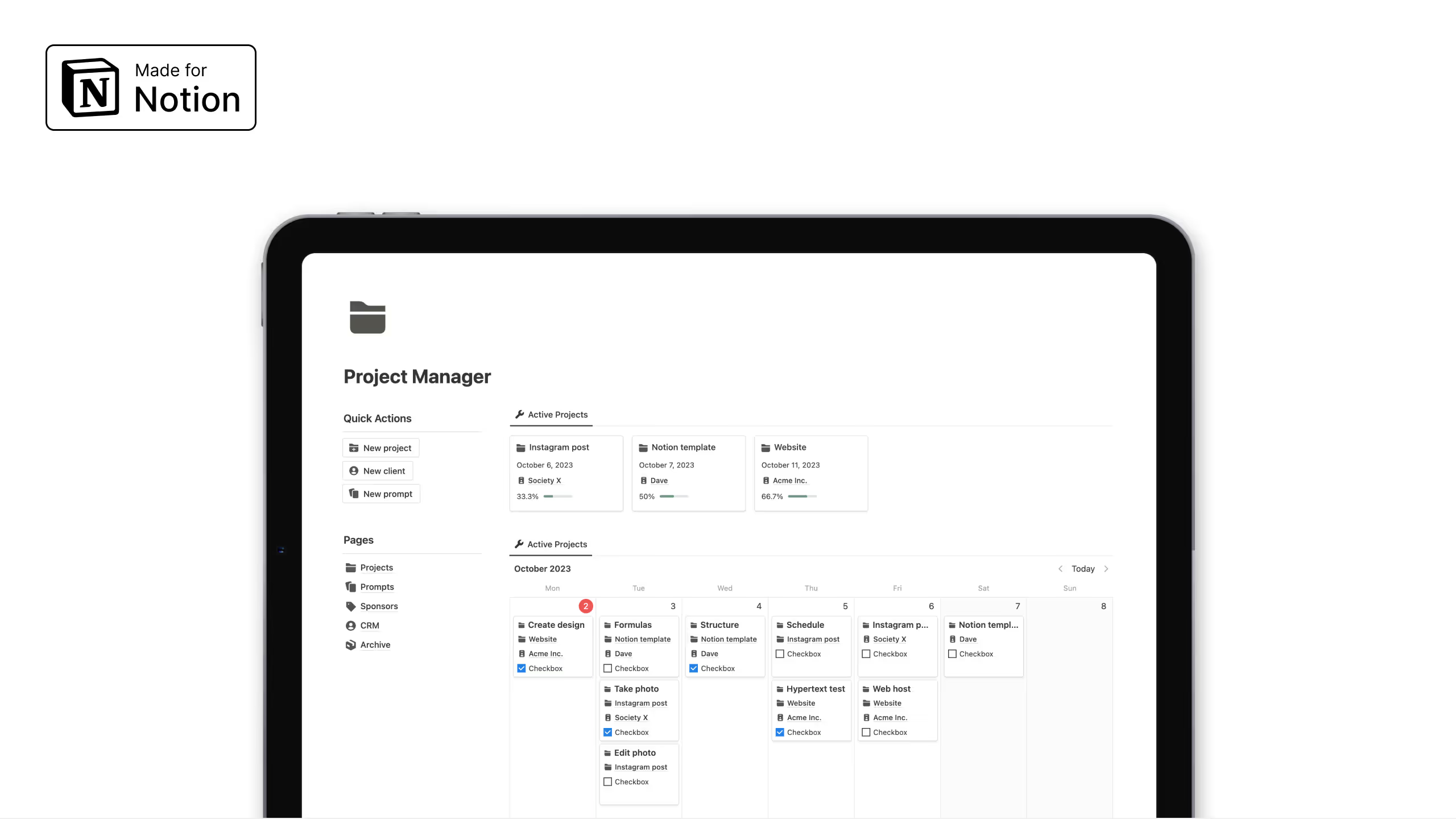
5. Project Manager Notion template
This Notion project management template fits best when content, partnerships, and deadlines overlap. I’d reach for this if I were juggling projects alongside sponsorships or collaborations.
Key features:
- Milestone tracking: Keep projects aligned with deadlines
- Partnership tracking: Store sponsorship and contract details
- Content planning: Space for content ideas and prompts
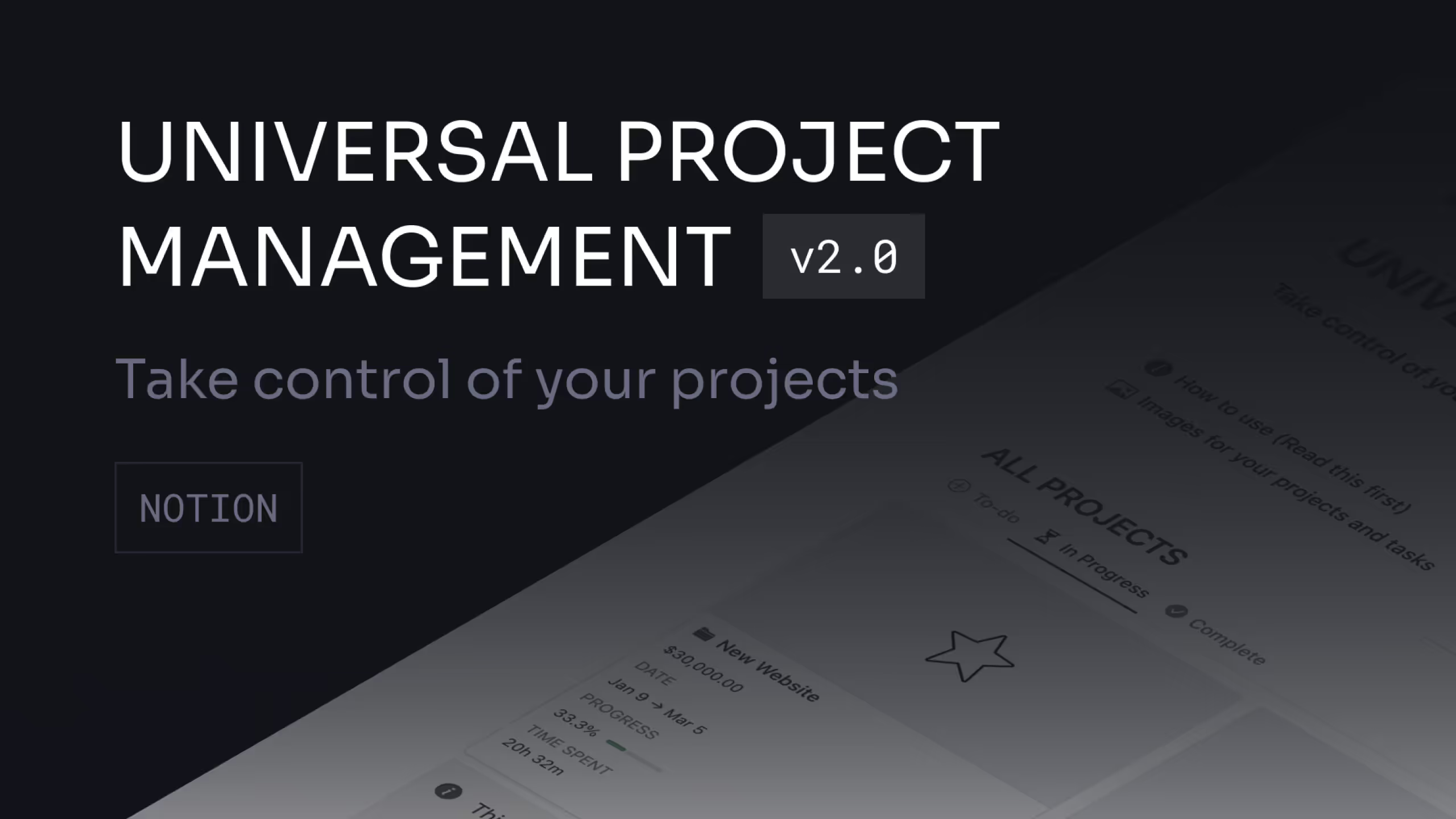
6. Universal Project Management Notion template
This is one of the more data-focused Notion project management templates I’d use when time and budget matter. I’d pick this when I need visibility into effort, not just task completion.
Key features:
- Time tracking: See how long tasks actually take
- Budget rollups: Automatic cost and time calculations
- Linked databases: Projects, tasks, and clients stay connected
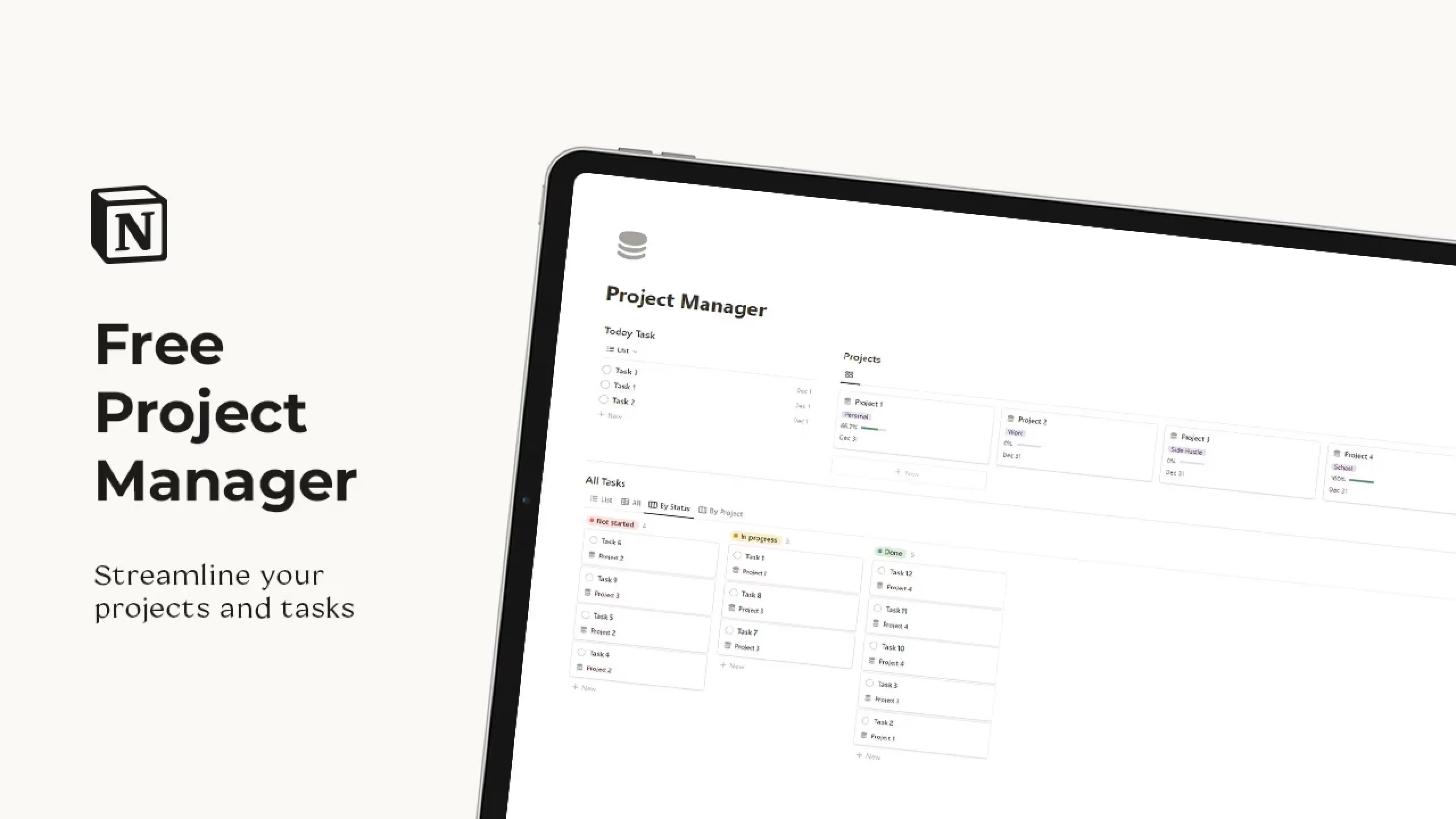
7. Notion Project Manager template (Free)
This template in Notion works well when I want something functional without paying or customizing much. I’d use it as a starter system for solo work or small teams.
Key features:
- Project-task connections: Clear link between goals and tasks
- Progress stages: Track work from start to finish
- Fast task entry: Add tasks without friction
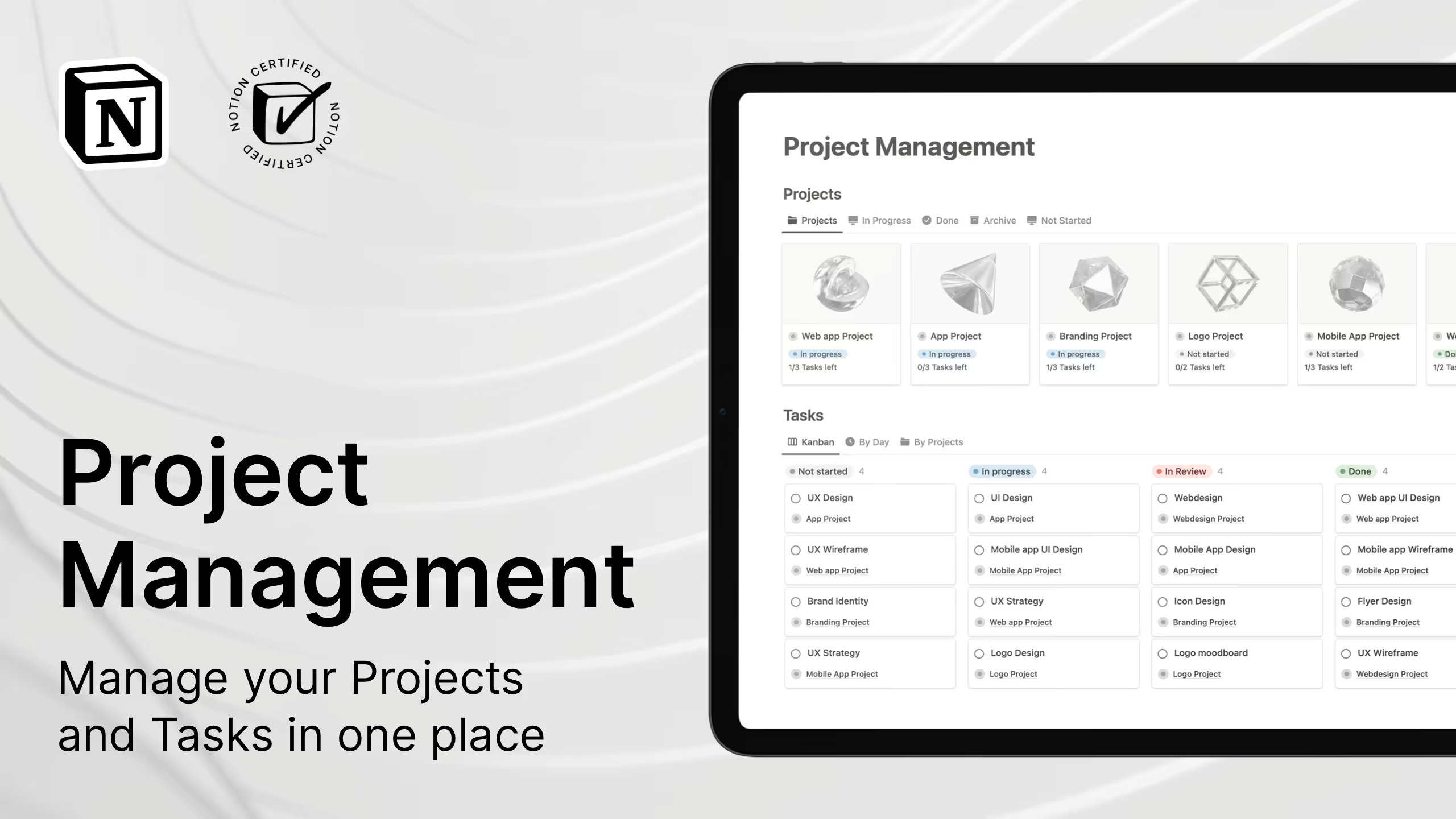
8. Notion Project Management template (Free)
This Notion project management template is a good fit when visual planning helps you think. I’d reach for it when Kanban boards and timelines matter more than raw data.
Key features:
- Kanban boards: Drag-and-drop task management
- Timeline view: See deadlines and overlaps clearly
- Progress bars: Visual completion tracking
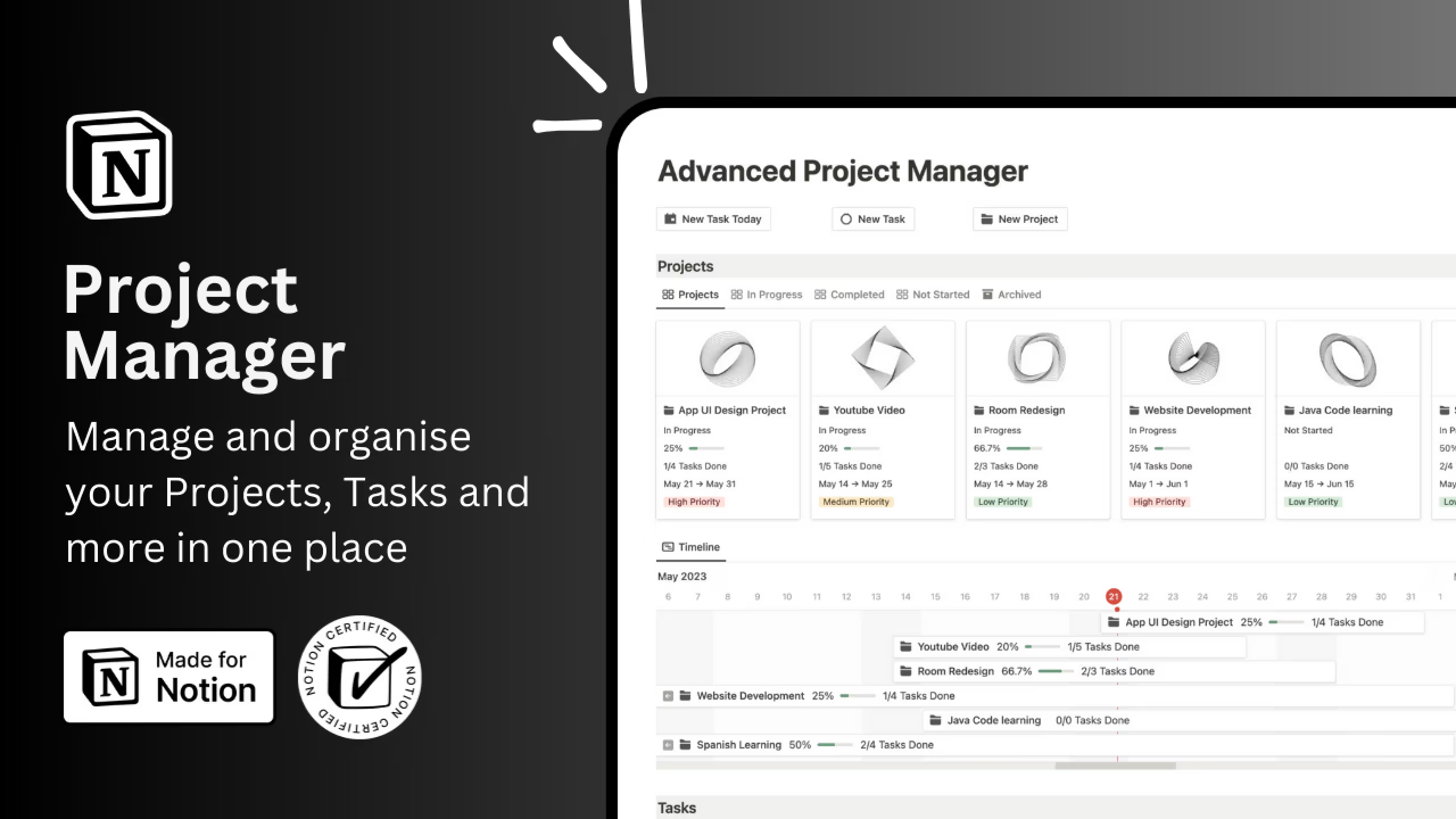
9. Notion Project Manager by Hashim (Free)
I’d personally pick this Notion project management template when deadlines are tight. The overdue task handling makes it practical for fast-moving teams.
Key features:
- Task-project relationships: Clear structure across work
- Overdue task alerts: Highlights what needs attention
- Team-friendly views: Shared visibility across projects
10. Notion Projects Manager template (Free)
This template is one of the more straightforward Notion project management templates for collaboration. It makes sense for me when a team needs alignment without complexity.
Key features:
- Project overview dashboard: All projects in one place
- Task tracking: Deadlines and progress stay visible
- Team collaboration: Shared updates and responsibilities
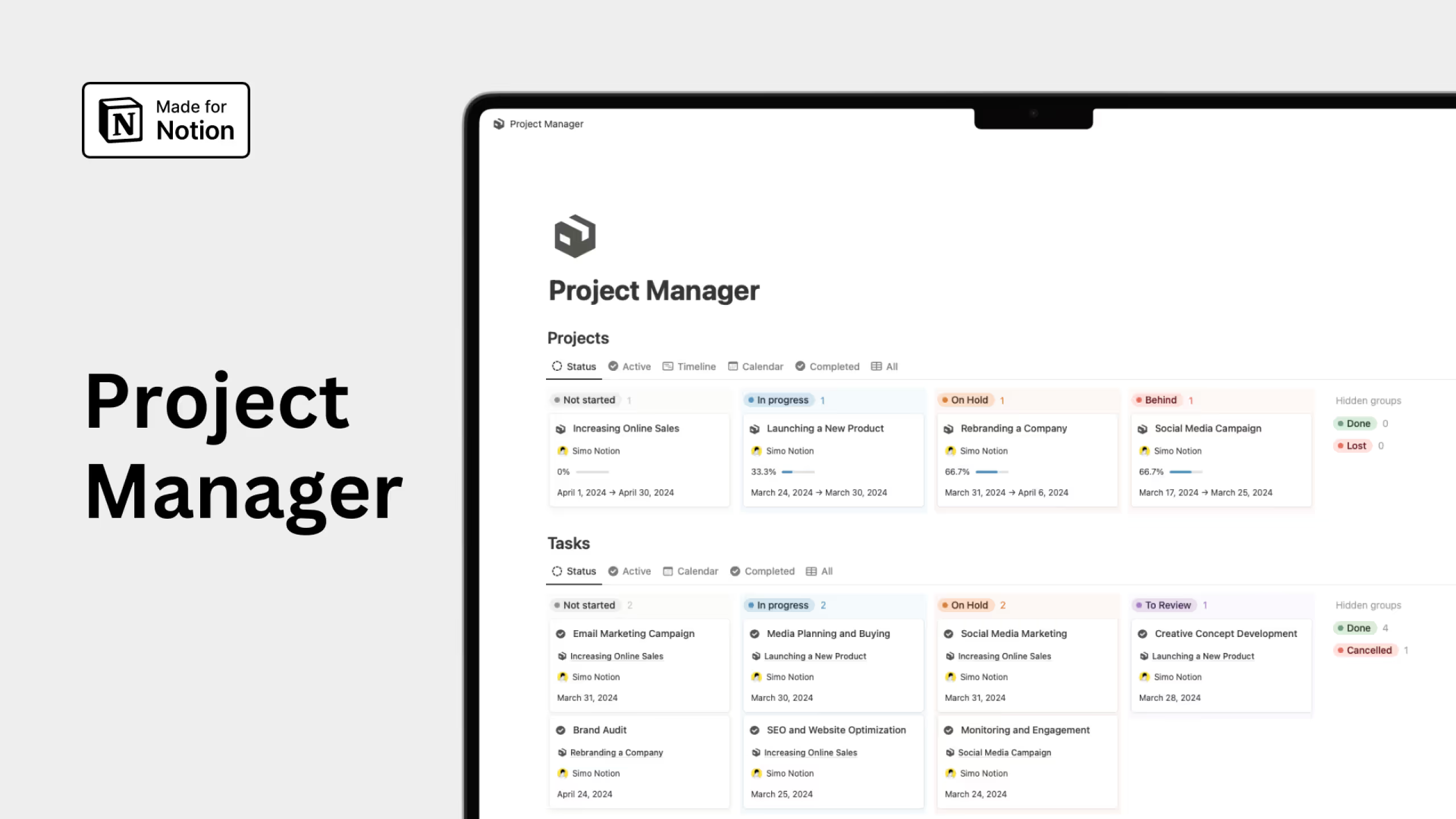
11. Notion Project Management template (Free)
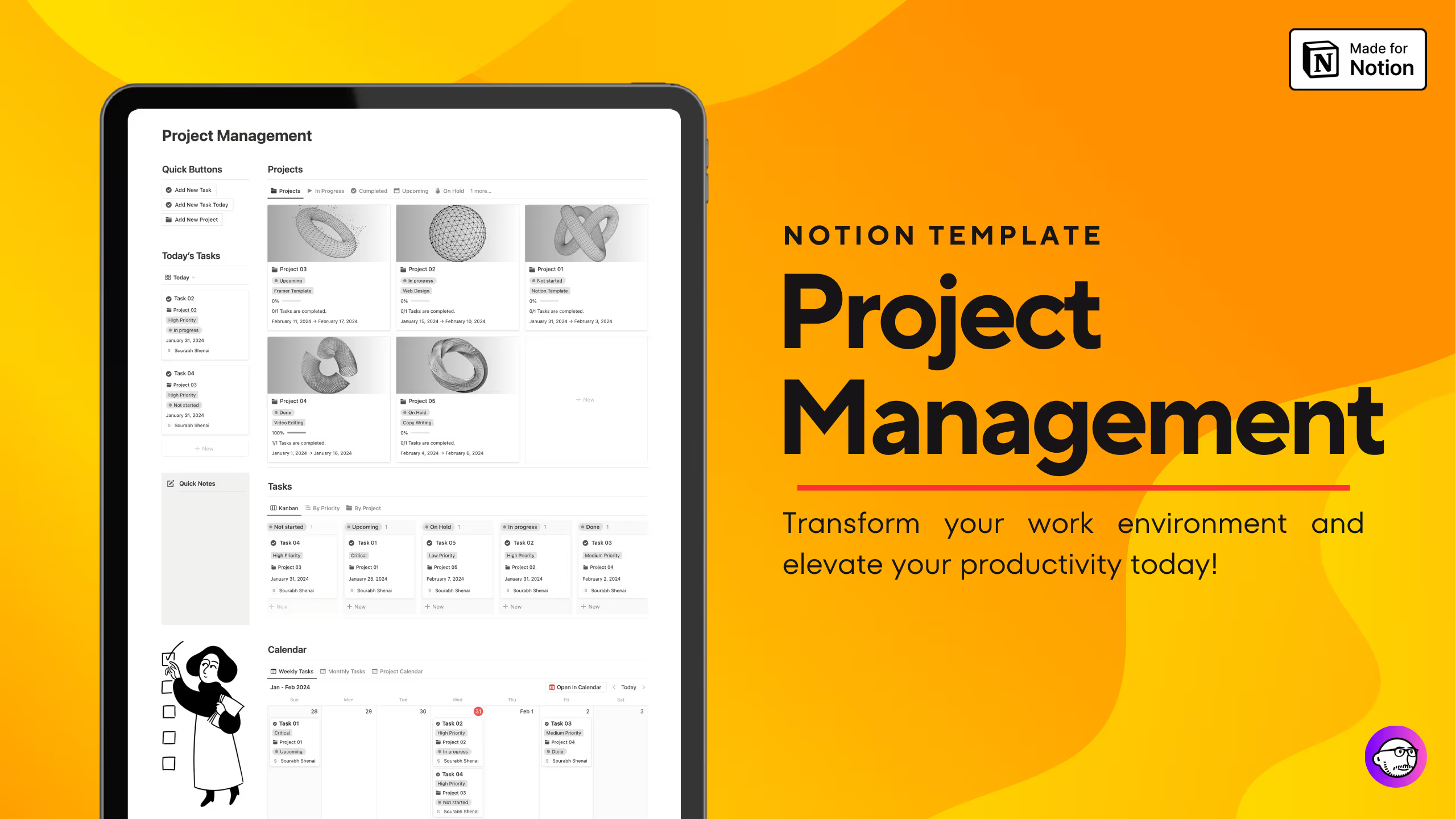
This Notion project management template works best when I want speed and visibility. I’d use it when managing multiple projects and needing fast updates.
Key features:
- Project gallery: Visual overview of all projects
- Kanban task boards: Track execution easily
- Timeline view: See milestones across projects
How to Build a Simple Projects Management Template in Notion
Building your own Notion projects management template takes about 30 minutes and gives you full control over your workflow.
Step 1: Create Your Projects Database
- Open a new page in Notion and type
/database, then select Table – Full Page. - Add these properties:
- Project Name (Title): Name of the project
- Status (Select): Not Started, In Progress, On Hold, Completed
- Priority (Select): High, Medium, Low
- Start Date (Date)
- Deadline (Date)
- Owner (Person): Who’s responsible
Step 2: Create Your Tasks Database
- Create a second table database for tasks.
- Add these properties:
- Task Name (Title)
- Status (Select): To Do, In Progress, Done
- Priority (Select): High, Medium, Low
- Due Date (Date)
- Project (Relation): Connect to your Projects database
- Assignee (Person)
Step 3: Connect Tasks to Projects
- In the Projects database, a new Tasks property appears automatically.
- Adding a task and linking it to a project shows it in that project’s list.
Step 4: Add a Progress Bar
- In the Projects database, add a Rollup property:
- Relation: Tasks
- Property: Status
- Calculate: Percent checked
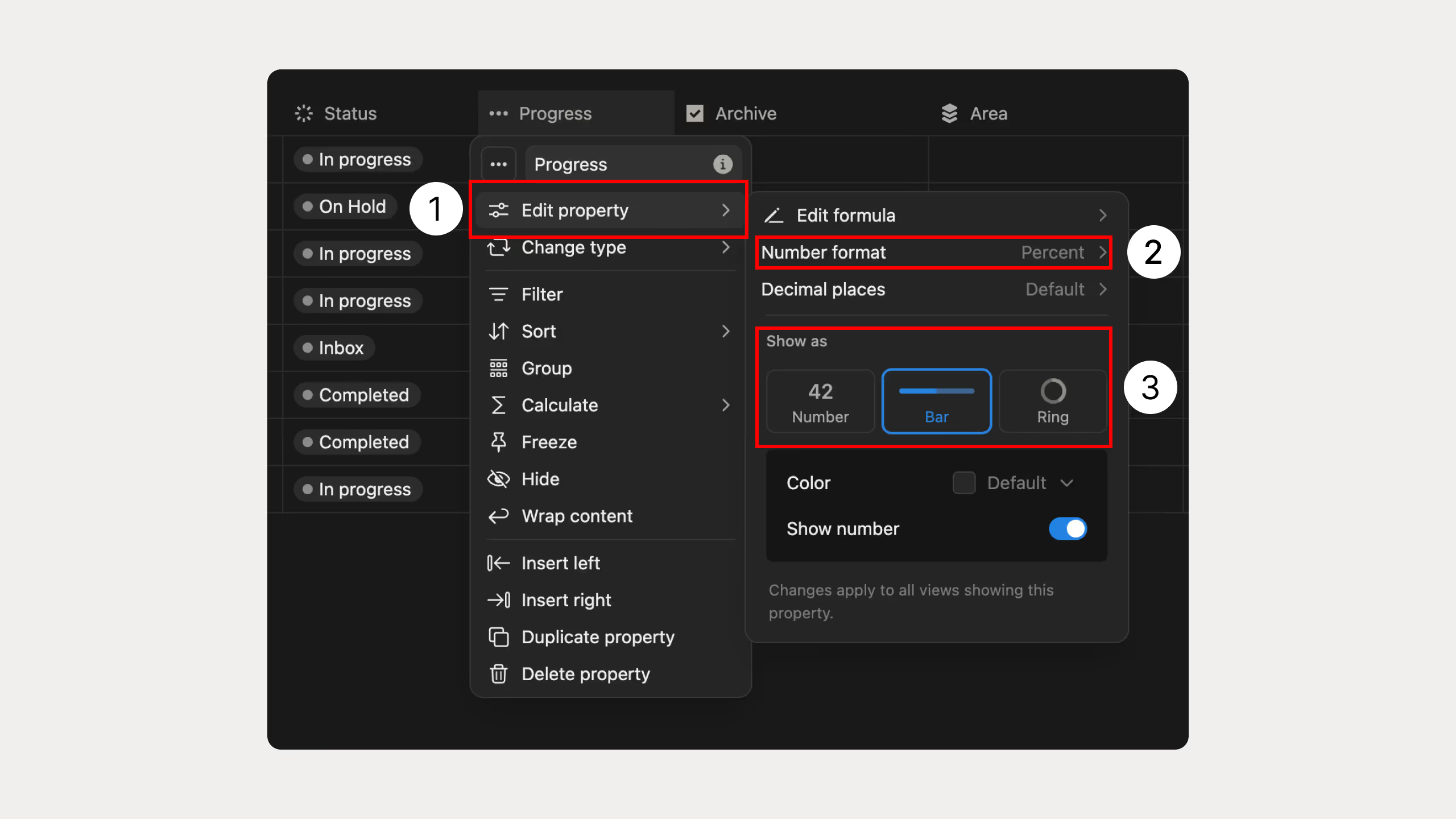
- Npw click the property → Edit property → set Number format as Percent → change property from Number to Bar.
- Now the project shows a visual progress bar that updates automatically as tasks are completed.
Step 5: Create Useful Views
- Projects database:
- Kanban Board: Group by Status
- Timeline: See projects on a calendar
- Calendar: Track deadlines
- Tasks database:
- My Tasks: Filter where Assignee is you
- This Week: Filter tasks due in the next 7 days
- By Project: Group by Project relation
Step 6: Create a Dashboard
- Make a new page and add:
- Linked view of Projects database
- Linked view of Tasks database filtered to your tasks
- Calendar view showing upcoming deadlines
Step 7: Set Up Templates
- In Projects database, click New → New Template
- Add inside the template:
- Sections for Project Overview, Goals, Timeline
- Linked view of tasks filtered to this project
- Any other sections needed for your workflow
Now every new project you create can use this template automatically.
That's it. You now have a functional Notion projects management template that tracks projects, tasks, progress, and deadlines. Start using it with one project, then expand as you get comfortable with the system.
Common Questions About Notion Project management templates
How do Notion templates compare to spreadsheets or docs?
Templates in spreadsheets are quick but usually static, while Notion templates create databases you can relate, filter, and visualize with board, timeline, and calendar views, with flexibility to adapt as projects grow. Notion lets you bring docs, tasks, and wiki together in one space instead of juggling multiple files.
Can teams use Notion for project management?
Yes, teams use Notion to manage plans, tasks, timelines, docs, and status updates in one place, with composable templates that let you tailor workflows like Agile, Waterfall, or hybrid approaches without duct-taping multiple tools together. Real-time collaboration and shared databases keep everyone aligned.
Is Notion secure for project data?
Notion can be considered secure, with data sent between your browser and Notion encrypted with TLS 1.2, databases encrypted with AES-256-bit, and data hosted on Amazon Web Services servers with 24/7 security, biometric scanning, and video surveillance. Your project information stays protected.
Can I customize Notion project management templates after downloading?
Absolutely, once you duplicate the template to your Notion workspace, you can modify it however you like by adding new properties, changing the layout, or adapting it to match your workflow. That's the beauty of projects management Notion templates - complete customization without starting from scratch.