.avif)
11 Best Notion Time Blocking Templates (Free + Paid) in 2026

The best Notion time blocking templates help you schedule focused work sessions, reduce distractions, and actually finish what you start.
Time blocking works. Research shows it can boost productivity by up to 80%, yet 82% of people still don't use any time management system at all. If you're constantly busy but never productive, a Notion time blocking template could change how you work.
In this guide, you'll find 11 templates ranging from simple daily planners to advanced systems with client tracking and reporting. You'll also learn how to connect Notion databases to Notion Calendar, sync with Google Calendar, and even build your own template from scratch.
.avif)
Table of content
What Are the Best Notion Time Blocking Templates?
The templates below range from free minimalist planners to full productivity systems. Each one takes a slightly different approach to time blocking, so pick one that matches how you actually work.
1. Time Block Task Manager
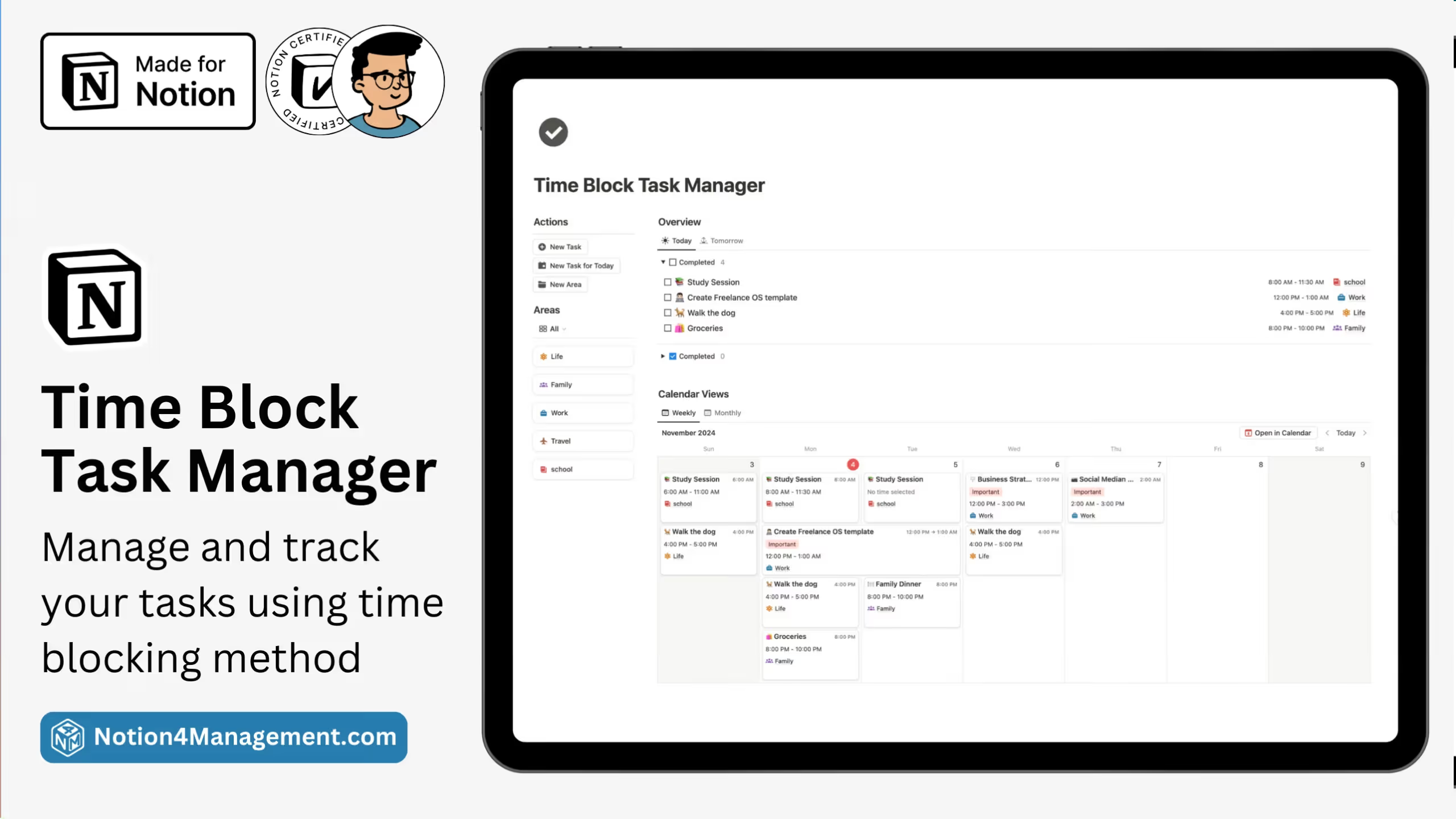
This free template from Hashim at Notion4Management gives you a clean starting point for time blocking without overwhelming features.
Who it's for: Beginners who want a simple system to organize daily tasks across different life areas.
Key Features:
- Organized areas for focused planning: Customize categories like Life, Family, Work, Travel, and School. Color-coded blocks help you quickly see how your time splits across different responsibilities.
- Today and Tomorrow sections: A streamlined view keeps your immediate priorities visible without scrolling through a massive task list.
- Weekly and monthly calendar views: Switch between perspectives depending on whether you're planning your day or mapping out the month ahead.
2. Notion Ultimate Time Tracker
Built for freelancers and professionals who bill by the hour, this template goes beyond basic time blocking to track actual time spent and calculate earnings.
Who it's for: Freelancers, consultants, and agencies who need to track billable hours across multiple clients and projects.
Key Features:
- Live time tracker: Track time in real-time with start and end times, or manually enter hours with quick-add buttons for common durations (1H, 2H, 4H).
- Client and project management: Assign tasks to specific clients, set hourly rates, and see total amounts automatically calculated.
- Monthly and yearly reports: Generate custom reports filtered by client, project, or date range. See exactly where your time goes and how much revenue each client generates.
- Project budgets: Set estimated values for projects and track progress against those budgets with visual progress bars.

3. Notion Time Block Planner
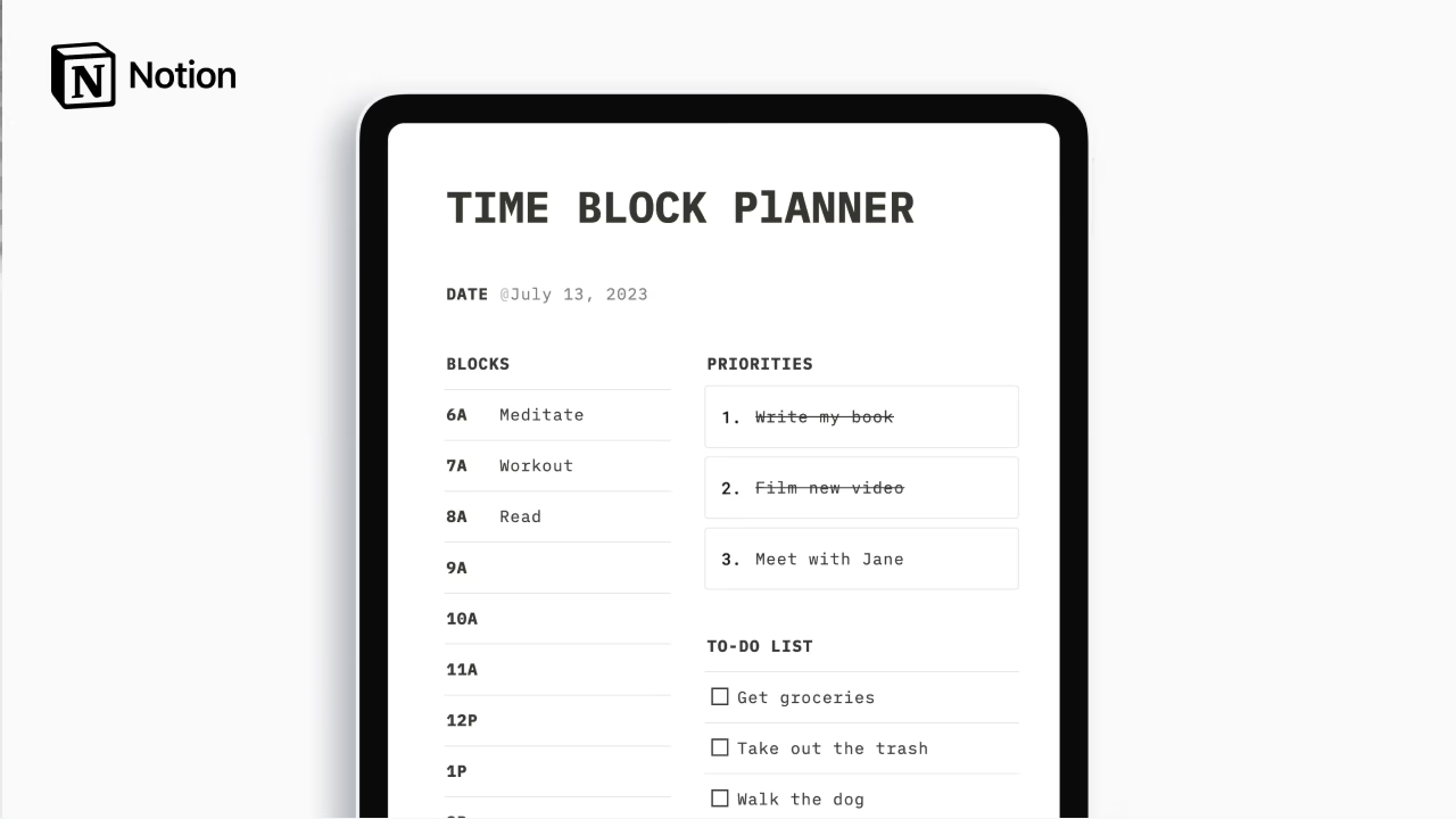
With over 240 ratings, this template from Easlo Academy proves that simple works. It's a no-frills daily planner built specifically around the time blocking method.
Who it's for: Anyone who wants to start time blocking today without a learning curve.
Key Features:
- Proven time blocking method: The template divides your day into focused task blocks, eliminating the decision fatigue of constantly asking "what should I work on next?"
- Minimal design: No extra features to distract you. Just schedule your blocks and get to work.
- Lifetime access: Free to download with optional donations.
4. Notion Time Blocking and Event Countdown
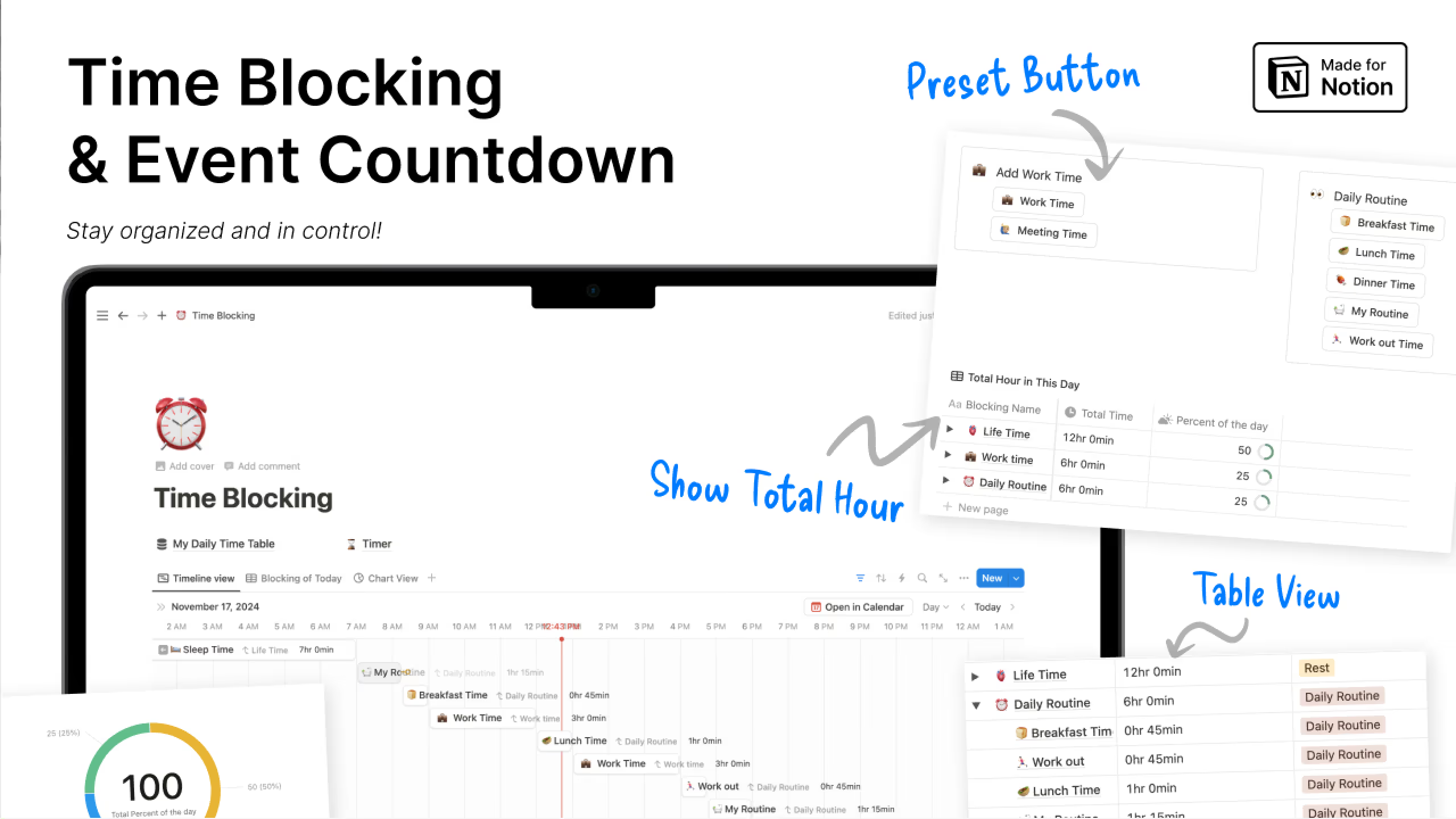
This template combines daily time blocking with an event countdown system, making it ideal for people who manage both routine work and upcoming deadlines.
Who it's for: Students, event planners, or anyone juggling daily tasks alongside important upcoming dates.
Key Features:
- Automatic daily reset: Tasks reset at midnight, so each day starts fresh without manual cleanup.
- One-click task creation: Preset buttons let you quickly add new time blocks without filling out forms.
- Event countdown system: Track multiple upcoming events with countdown timers and progress tracking. Never miss a deadline because you lost track of time.
- Time analysis charts: Visualize how you spend your time with built-in chart views. See totals for each category and identify where your hours actually go.
5. ULTIMATE Time Block Planner
Designed with Notion Calendar integration in mind, this template bridges the gap between your Notion workspace and your external calendars.
Who it's for: Notion power users who want their time blocks to appear alongside Google Calendar events.
Key Features:
- Notion Calendar integration: Connect your time blocks directly to Notion Calendar and see them alongside your Google Calendar events. Schedule tasks knowing exactly when you have meetings.
- Task inbox: Capture new tasks quickly, then schedule them into time blocks during your daily planning session.
- Daily time blocks view: See today, tomorrow, and yesterday's schedules at a glance. Quickly review what you accomplished and plan what's ahead.
- Step-by-step tutorial video: A walkthrough video explains how to use the template and customize it for your workflow.
6. The Time Blocker
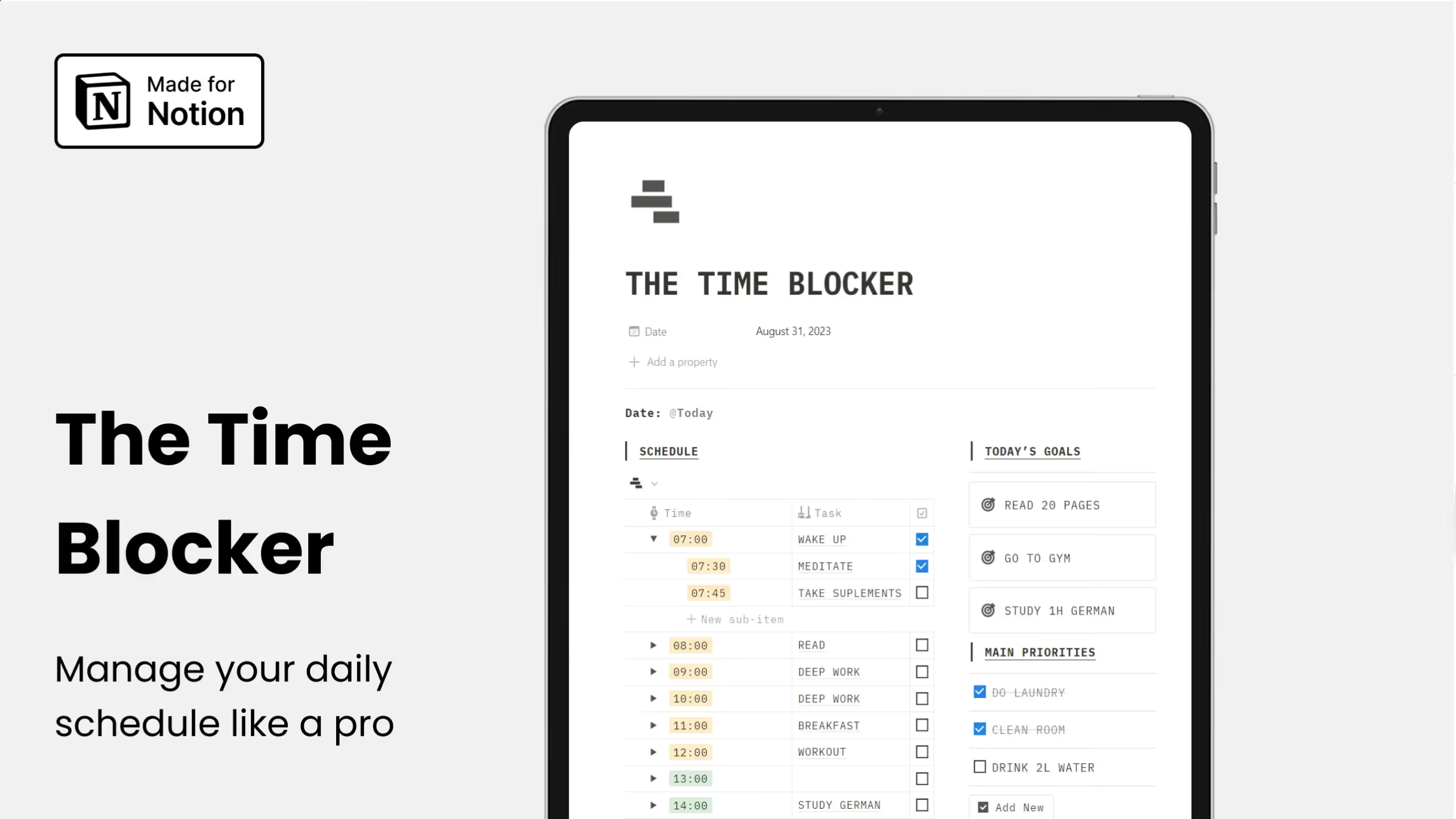
A free template focused on eliminating distractions and boosting efficiency through structured time blocks.
Who it's for: People who struggle with focus and need a simple system to structure their day.
Key Features:
- Focused task blocks: Divide your day into specific blocks to minimize distractions and maximize single-tasking.
- Progress tracking: Monitor what you accomplish within each block to build awareness of your productivity patterns.
- Easy navigation: Intuitive layout means you spend time working, not figuring out the template.
- Goal achievement framework: Structure your blocks around your most important goals, not just urgent tasks.
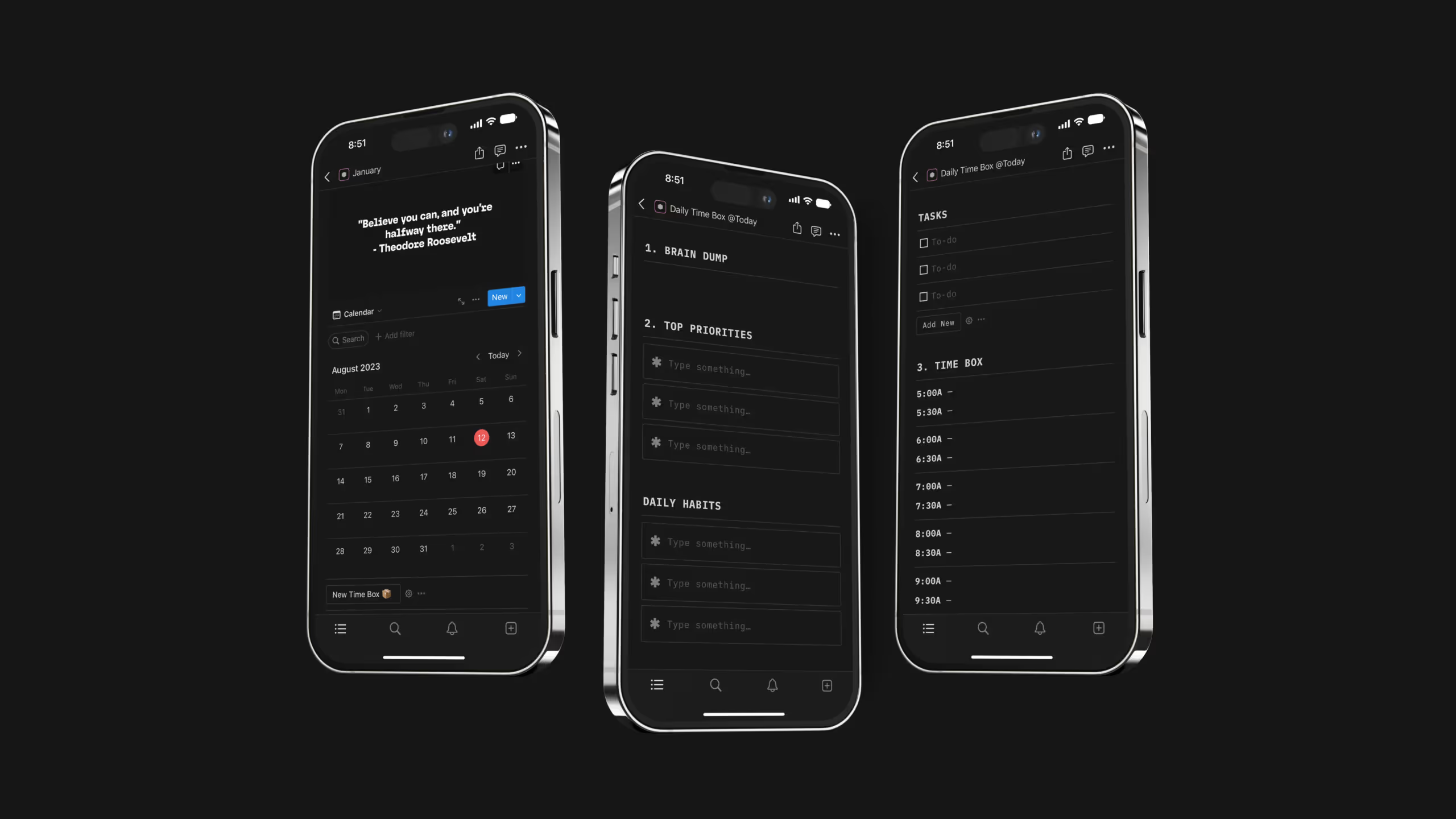
7. Time Box Planner
Based on a three-step method (brain dump, prioritize, time box), this template helps you move from overwhelmed to organized in minutes.
Who it's for: Overthinkers who need a structured process to plan their day.
Key Features:
- Brain dump section: Declutter your mind by writing down everything you need to do. Get it out of your head and onto the page.
- Top 3 priorities: Force yourself to choose the three most important tasks. This prevents the trap of working on easy tasks while important work waits.
- 30-minute time boxes: Allocate tasks to specific time slots in 30-minute increments. The structure keeps you accountable throughout the day.
- 36 motivational quotes: Built-in quotes provide daily inspiration without needing another app.
8. Notion Time Blocking Daily Planner
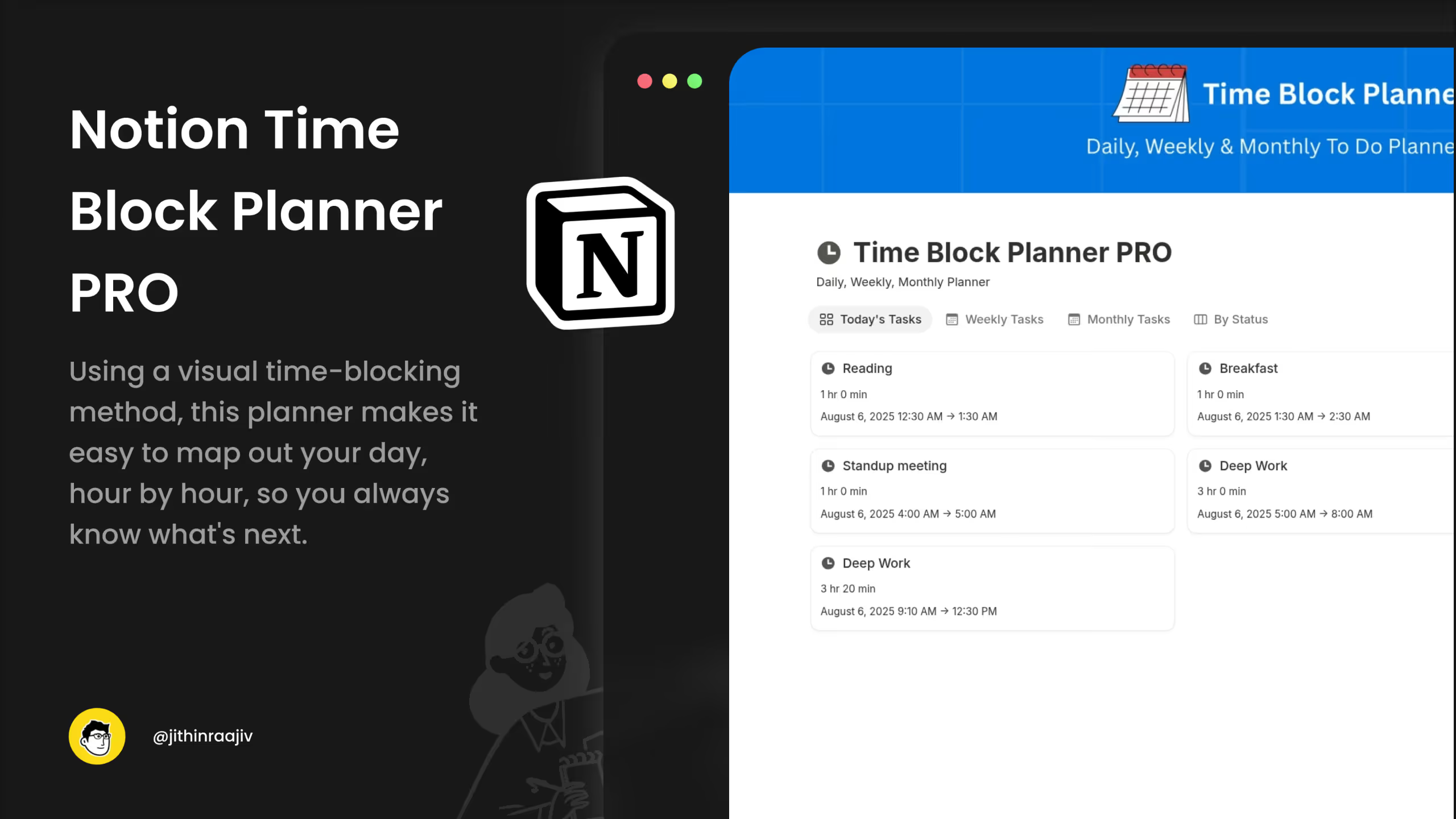
A visual time blocking system with daily, weekly, and monthly views for comprehensive planning.
Who it's for: Visual planners who want to see their schedule mapped out hour by hour.
Key Features:
- Daily, weekly, and monthly views: Switch between perspectives depending on your planning needs. Daily view for execution, weekly for balance, monthly for big picture.
- Flexible scheduling: Adapt the template to your lifestyle. Whether you work 9-5 or have an irregular schedule, the blocks adjust to fit.
- Customizable time blocks: Modify block durations, colors, and categories to match how you actually work.
- User-friendly interface: Navigate easily between views without getting lost in complex databases.
9. Time Blocking Notion Template
Inspired by Cal Newport's deep work principles, this free template from Productive Setups combines your to-do list, calendar, and time blocking in one setup.
Who it's for: Knowledge workers who want to protect time for focused, cognitively demanding work.
Key Features:
- All-in-one setup: Combines to-do list, calendar, and time blocking so you don't need separate tools. Everything lives in one place.
- Deep work focus: Designed around Cal Newport's principles of protecting uninterrupted time for your most important work.
- Intuitive design: Start using it immediately without studying documentation. The layout makes time blocking feel natural.
- Free with optional donation: Completely free to use. Pay what you want if the template helps you.
10. Notion Time Blocking Template
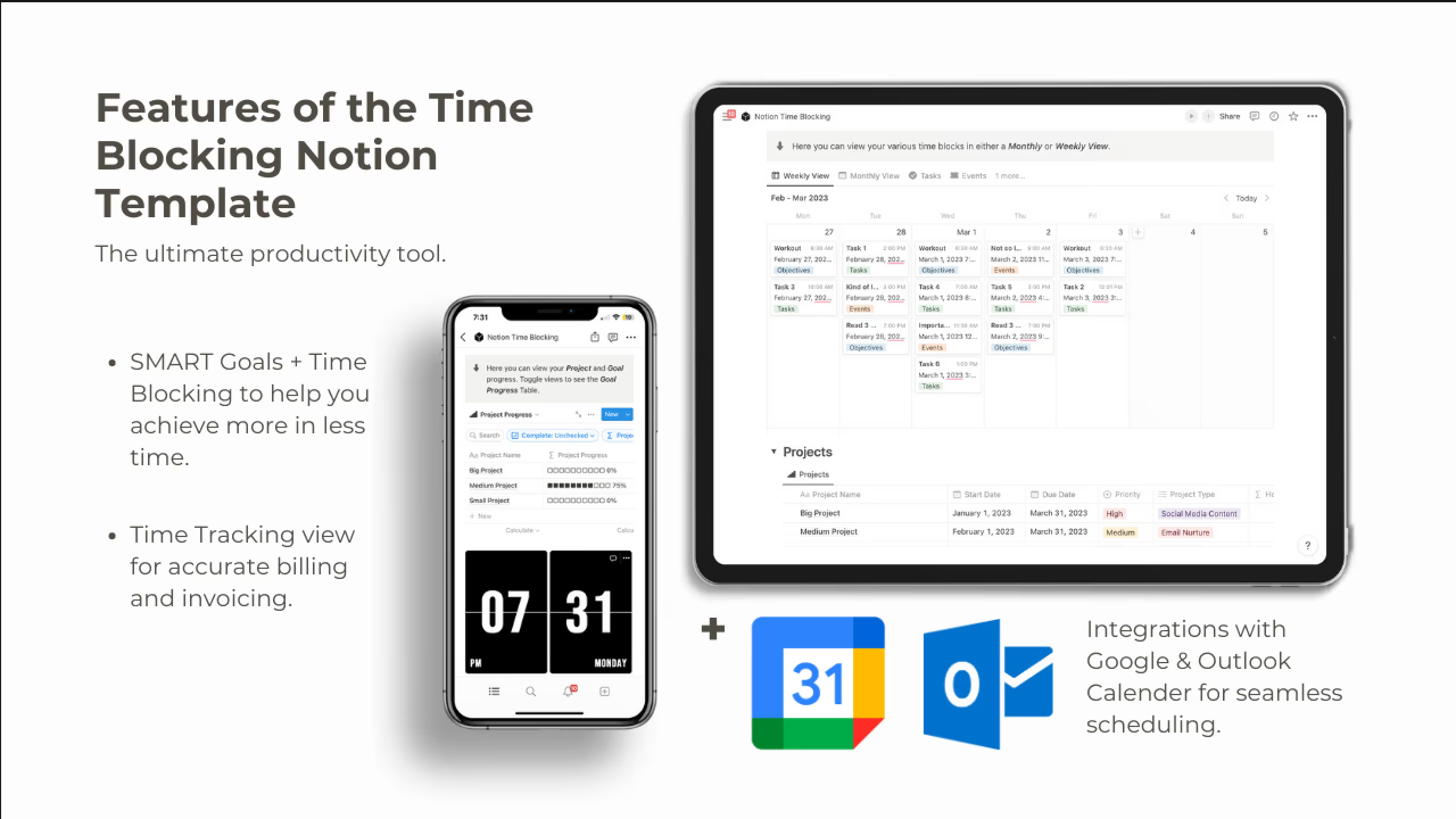
This template integrates with both Google Calendar and Outlook Calendar, plus includes SMART goals functionality for long-term planning.
Who it's for: Goal-oriented professionals who want their daily time blocks connected to larger objectives.
Key Features:
- Google and Outlook Calendar integration: Sync your time blocks with external calendars so everything stays coordinated.
- SMART goals framework: Set specific, measurable, achievable, relevant, and time-bound goals. Then connect your daily time blocks to those goals.
- Freelance time tracking view: Track hours by project or client for accurate billing.
- Task prioritization tools: Built-in systems help you decide what to work on when, not just when to work.
11. Time Blocking Calendar
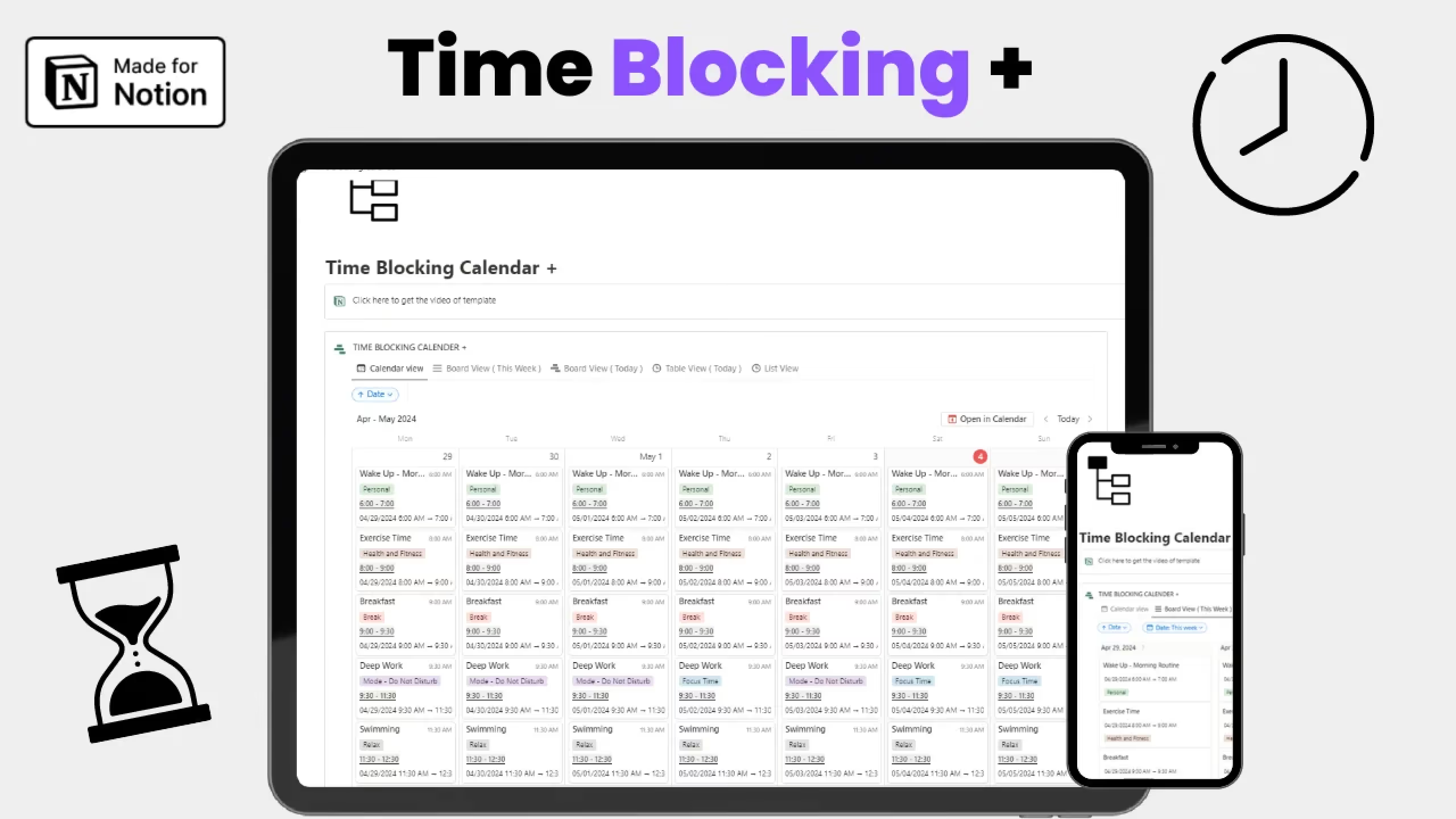
With over 9,000 downloads, this template from Hansel Sapkota offers multiple views (calendar, board, table, list) for maximum flexibility.
Who it's for: People who like to see their schedule in different formats depending on the situation.
Key Features:
- Multiple database views: Switch between calendar view for scheduling, board view for status tracking, table view for data entry, and list view for quick scanning.
- Improved focus: Allocating dedicated time slots reduces distractions and enhances concentration on single tasks.
- Better time management: Visual scheduling helps you prioritize tasks and allocate time effectively.
- Work-life balance: Schedule personal activities alongside work tasks to ensure you're not just productive but also taking care of yourself.
What Is Time Blocking?
Time blocking is a time management method where you divide your day into specific chunks, each dedicated to a single task or type of work. Instead of working from a never-ending to-do list and constantly deciding what to tackle next, you schedule exactly when you'll work on each task.
Here's the basic idea: if you have a report to write, you don't just add "write report" to your to-do list and hope you find time. You block 9 AM to 11 AM on Tuesday specifically for that report. During those two hours, that's the only thing you work on.
The technique was popularized by Cal Newport, author of Deep Work, who calls time blocking "the most productive way to organize your day." According to Newport's research, time blocking can make you up to twice as efficient as conventional planning methods.
Why does time blocking work?
The human brain isn't built for multitasking. What we call multitasking is actually rapid task-switching, and research from the University of California shows it takes an average of 23 minutes to fully regain focus after switching tasks. If you check email every 15 minutes while trying to write a report, you never reach full concentration.
Time blocking solves this by creating protected periods for focused work. When you know exactly what you should be doing at any given moment, you eliminate the constant mental negotiation of "what should I work on now?"
A workplace study found that 45% of people agree regular context-switching makes them less productive. Time blocking directly addresses this by batching similar tasks together and protecting deep work from interruptions.
The core benefits of time blocking include:
- Reduced decision fatigue. You decide once during planning, not repeatedly throughout the day.
- Protected focus time. Deep work gets dedicated blocks, not leftover scraps of time.
- Realistic planning. You see exactly how much time you have, which prevents overcommitting.
- Better work-life balance. When personal time has a block, it actually happens.
- Improved time awareness. You learn how long tasks actually take, making future planning more accurate.
Time blocking isn't about scheduling every minute with military precision. It's about being intentional with your hours instead of letting the day happen to you.
Is Notion Good for Time Blocking?
Yes, Notion is excellent for time blocking, and here's why it stands out from basic calendar apps.
Notion combines your task database, notes, and calendar views in one workspace. When you time block in Notion, you're not just scheduling hours. You're connecting those time blocks to actual projects, adding context, attaching documents, and tracking progress over time.
The real advantage comes from Notion Calendar integration. According to Notion's help documentation, you can display any Notion database with a date property directly in Notion Calendar. This means your task database becomes your schedule. Drag a task to a time slot, and it updates everywhere.
Three things make Notion particularly effective for time blocking:
Database flexibility. Unlike rigid calendar apps, Notion lets you add custom properties like priority, project, estimated time, and actual time spent. You can filter views to show only today's tasks or just high-priority work.
Visual planning. Notion's calendar view shows your time blocks color-coded by category. You see at a glance how your week balances work, personal tasks, and breaks.
Notion Calendar sync. When you connect Notion Calendar to your workspace, you see both your scheduled meetings from Google Calendar and your Notion tasks in one unified view. Notion Calendar syncs with Google Calendar and Apple iCloud, with Outlook support coming soon.
How Do I Connect a Notion Database to Notion Calendar?
Connecting a Notion database to Notion Calendar lets you see your tasks as events on your calendar. Here's how to set it up:
Step 1: Make sure your database has a date property
Your Notion database needs at least one date property. This can be a due date, scheduled date, or any date field. Without a date property, Notion Calendar has nothing to display.
Step 2: Create a Calendar view in your database
This step is critical. According to Notion's documentation, you need a Calendar view of your database before it can appear in Notion Calendar.
Click the plus sign next to your database views, select Calendar, and choose which date property to display.
Step 3: Connect your Notion workspace to Notion Calendar
Open Notion Calendar (the separate app, not just Notion). Go to Settings, find "Notion workspaces" in the sidebar, and click "Add Notion workspace." Authorize the connection.
Step 4: Add your database to Notion Calendar
In Notion Calendar's left sidebar, click the three dots next to your workspace name and select "Add Notion database." Search for your database and select the Calendar view you created.
Pro tip: You can add the same database multiple times with different filtered views. For example, add one view for work tasks and another for personal tasks, each with different colors.
Once connected, you can drag and drop tasks to reschedule them. Any changes sync back to your Notion database automatically.
Can You Time Block on Notion Calendar?
Yes, Notion Calendar supports time blocking in two ways.
First, you can create events directly in Notion Calendar. Click on any time slot to create a new event. These work like standard calendar events. You can add titles, descriptions, locations, and video conferencing links.
Second, and more powerful, you can time block using your Notion databases. When you connect a task database to Notion Calendar, your tasks appear as time blocks. Drag tasks from the sidebar to specific time slots on your calendar.
According to Notion's guide on calendar features, this second method is especially useful for time blocking because it connects your schedule to your actual task list. You're not just blocking time. You're scheduling specific work.
Notion Calendar also offers auto-blocking. When you add an event to one connected calendar, it can automatically show you as busy on your other calendars. This prevents double-booking when you manage both work and personal calendars.
The keyboard shortcut "S" quickly opens the scheduling feature. You can drag to select available time slots, generate a text snippet with your availability, and share it with anyone who needs to book time with you.
Can I Create New Notion Tasks Directly from Notion Calendar?
Yes. When you have a Notion database connected to Notion Calendar, you can create new database items without leaving the calendar.
Here's how it works:
Click on a time slot in Notion Calendar. Instead of creating a regular calendar event, select your connected Notion database from the dropdown. A new database page is created with that date and time automatically filled in.
You can also use the task list panel on the left side of Notion Calendar. Notion's help documentation explains that clicking on a connected database in your sidebar opens a panel showing all pages in that database. From there, you can drag pages directly onto your calendar to schedule them.
This two-way connection means you can plan your week without constantly switching between Notion and your calendar. See an open time slot? Create a task for it. Find an unscheduled task? Drag it to when you'll work on it.
Does Notion Calendar Sync with Google Calendar and Apple Calendar?
Yes to both, but with some differences.
Google Calendar: Notion Calendar has native two-way sync with Google Calendar. You can connect up to five Google Calendar accounts. Events you create in Notion Calendar appear in Google Calendar and vice versa. Changes sync in both directions.
Apple Calendar (iCloud): Notion Calendar also syncs with Apple iCloud-synced calendars. You'll need to create an app-specific password through your Apple account to connect. Once connected, your Apple Calendar events appear in Notion Calendar.
Microsoft Outlook: Not yet supported natively, but it's on Notion's roadmap. For now, you can use third-party tools like Zapier or Make.com to sync Outlook with Notion databases.
One powerful feature: Notion Calendar can auto-block events across your connected calendars. If you add a personal appointment to your iCloud calendar, Notion Calendar can automatically show that time as "busy" on your work Google Calendar. This prevents colleagues from booking meetings during your personal time.
Which Is Better for Time Blocking: Notion Calendar, Google Calendar, or Apple Calendar?
Each has strengths depending on how you work. Here's a comparison:
Choose Notion Calendar if: You already use Notion for task management and want your tasks and calendar in one view. The database integration is the killer feature. You can see exactly what you planned to work on alongside your meetings.
Choose Google Calendar if: You need maximum compatibility. Google Calendar works everywhere, integrates with everything, and most people already have it. It's simple and reliable, but you'll need separate tools for task management.
Choose Apple Calendar if: You're fully in the Apple ecosystem and want tight integration with your devices. It's clean and fast on Apple devices but limited for cross-platform use or team collaboration.
For serious time blocking, Notion Calendar has an edge because it treats your tasks as schedulable events. You're not just blocking time. You're assigning specific work to specific hours.
How to Create a Time Blocking Template from Scratch in Notion
Want to build your own system instead of using a pre-made template? Here's how to create a time blocking template in Notion from scratch.
Step 1: Create a new database
Open a new page in Notion. Type /database and select "Database - Full page" or "Database - Inline" depending on your preference.
Step 2: Add essential properties
Your time blocking database needs these properties at minimum:
- Name (Title): The task or time block name
- Date: When the block is scheduled. Use a Date property with time enabled.
- Category: A Select property with options like Work, Personal, Admin, Deep Work, Meetings
- Status: A Select property with options like To Do, In Progress, Complete
- Duration: A Number property to estimate how long the task takes (in minutes or hours)
Optional but useful properties:
- Project: A Relation property linking to a projects database
- Priority: A Select property (High, Medium, Low)
- Notes: A Text property for context
Step 3: Create a Calendar view
Click the plus sign next to your database views and select Calendar. Choose your Date property as the calendar date. Now your tasks appear as blocks on a visual calendar.
Step 4: Add a Today filter view
Create another view filtered to show only today's date. This gives you a focused daily view without scrolling through the whole month.
Step 5: Connect to Notion Calendar (optional)
If you use Notion Calendar, open the app, go to Settings, connect your workspace, and add your new database. Now your time blocks appear alongside your other calendars.
Step 6: Build a daily planning dashboard
Create a new page as your daily command center. Add:
- A filtered view of today's tasks
- A filtered view of tomorrow's tasks
- An unscheduled tasks view (tasks with no date)
- A quick-add button to create new time blocks
Tips for effective time blocking:
Research from the University of California shows it takes an average of 23 minutes to fully regain focus after an interruption. Build your time blocks with this in mind:
- Schedule your most important work during your peak energy hours
- Group similar tasks together to minimize context switching
- Add buffer time between blocks. Back-to-back scheduling leads to burnout.
- Review and adjust weekly. Time blocking is a skill that improves with practice.
Liked this? I've got more Notion templates that might help. They're all ready to use, no setup required.
Frequently Asked Questions
What is time blocking?
Time blocking is a time management method where you divide your day into specific chunks, each dedicated to a single task or type of work. Instead of working from a to-do list and deciding what to do next constantly, you schedule when you'll work on each task. Studies suggest this approach can significantly reduce context switching, which causes 45% of people to feel less productive.
How long should time blocks be?
Most productivity experts recommend blocks between 30 minutes and 2 hours. Shorter blocks (30-60 minutes) work well for shallow work like emails and admin tasks. Longer blocks (90-120 minutes) suit deep work that requires sustained focus. The Pomodoro Technique uses 25-minute focused sessions with 5-minute breaks, which some people find effective for maintaining concentration.
Is time blocking better than a to-do list?
They serve different purposes and work best together. A to-do list captures what needs to be done. Time blocking schedules when you'll do it. The problem with to-do lists alone is they don't account for the time available. You might have 30 tasks on your list but only 4 hours of unscheduled time. Time blocking forces you to be realistic about what you can accomplish.
Can I use time blocking if my schedule changes frequently?
Yes, but you'll need flexibility built in. Leave buffer time between blocks for unexpected tasks. Schedule your most important work during times you can protect. Review and reschedule blocks at the start of each day. Many people find that even imperfect time blocking beats no structure at all.
What's the difference between time blocking and time boxing?
Time blocking assigns tasks to time slots. Time boxing adds a deadline. With time blocking, you might schedule "work on report" from 9-11 AM. With time boxing, you'd schedule "finish first draft of report" from 9-11 AM. Time boxing creates artificial urgency that can boost productivity, but it requires accurate time estimation.
How do I handle interruptions while time blocking?
Build "interruption time" into your schedule. This might be 30 minutes before lunch or at the end of the day for dealing with unexpected requests. When someone interrupts during a focused block, ask if it can wait until your interruption time. Most things can.