.avif)
12 Best Notion PARA Templates (Free + Paid) in 2026

You already know you need a better system. Your notes are scattered across apps, your tasks keep slipping through the cracks, and finding that one important file takes way too long. The right Notion PARA templates can fix this in minutes.
According to a McKinsey Global Institute report, employees spend an average of 1.8 hours each day just searching for information. That adds up to nearly 25% of your working week gone before you even start the real work.
The PARA method offers a solution. Developed by productivity expert Tiago Forte, this simple four-category system has helped millions of people finally get organized. And when you combine PARA with Notion, you get a flexible digital workspace that actually works.
This guide covers the best Notion PARA templates available right now, explains how PARA works, and shows you how to set up your own system step by step.
.avif)
Table of content
What Are the Best Notion PARA Templates?
Not every PARA template works the same way. Some keep things minimal, while others pack in advanced features like habit tracking, goal setting, and automation. Here are the best options available right now, organized by what they do best.
1. Notion Second Brain (⭐️ Recommended)
This template combines the PARA method with GTD principles for a complete productivity system. It goes beyond basic organization to include task management, goal tracking, and habit building in one workspace.
The system works through four main stages: capture everything in an inbox, organize by PARA categories, break projects into tasks, and execute through daily reviews. Everything connects, so your tasks link to projects, projects link to areas, and nothing exists in isolation.
Key Features:
- Combined PARA and GTD workflows: Integrates both systems so you can organize information and manage tasks in one place
- Quick capture inbox: Collect thoughts, ideas, and tasks without deciding where they go immediately
- Connected databases: Projects, tasks, areas, and resources all link together for easy navigation
- Review system: Built-in weekly and daily review pages help you stay on top of everything
.avif)
2. Notion PARA Dashboard
A straightforward implementation of the PARA method with a clean, minimal design. This free template does not try to be everything. It focuses on giving you the four core databases and letting you customize from there.
The template categorizes your life into Tasks, Projects, Areas, and Resources. You can move pages to Archive by checking a box in any database. No complicated setup, no overwhelming features.
Key Features:
- Four linked databases: Tasks, Projects, Areas, and Resources all connect through relations
- Simple archive system: Check a box to move any item to the Archive view
- Clean interface: Minimal design that does not distract from your actual work
- Free to use: Pay what you want pricing makes this accessible to everyone
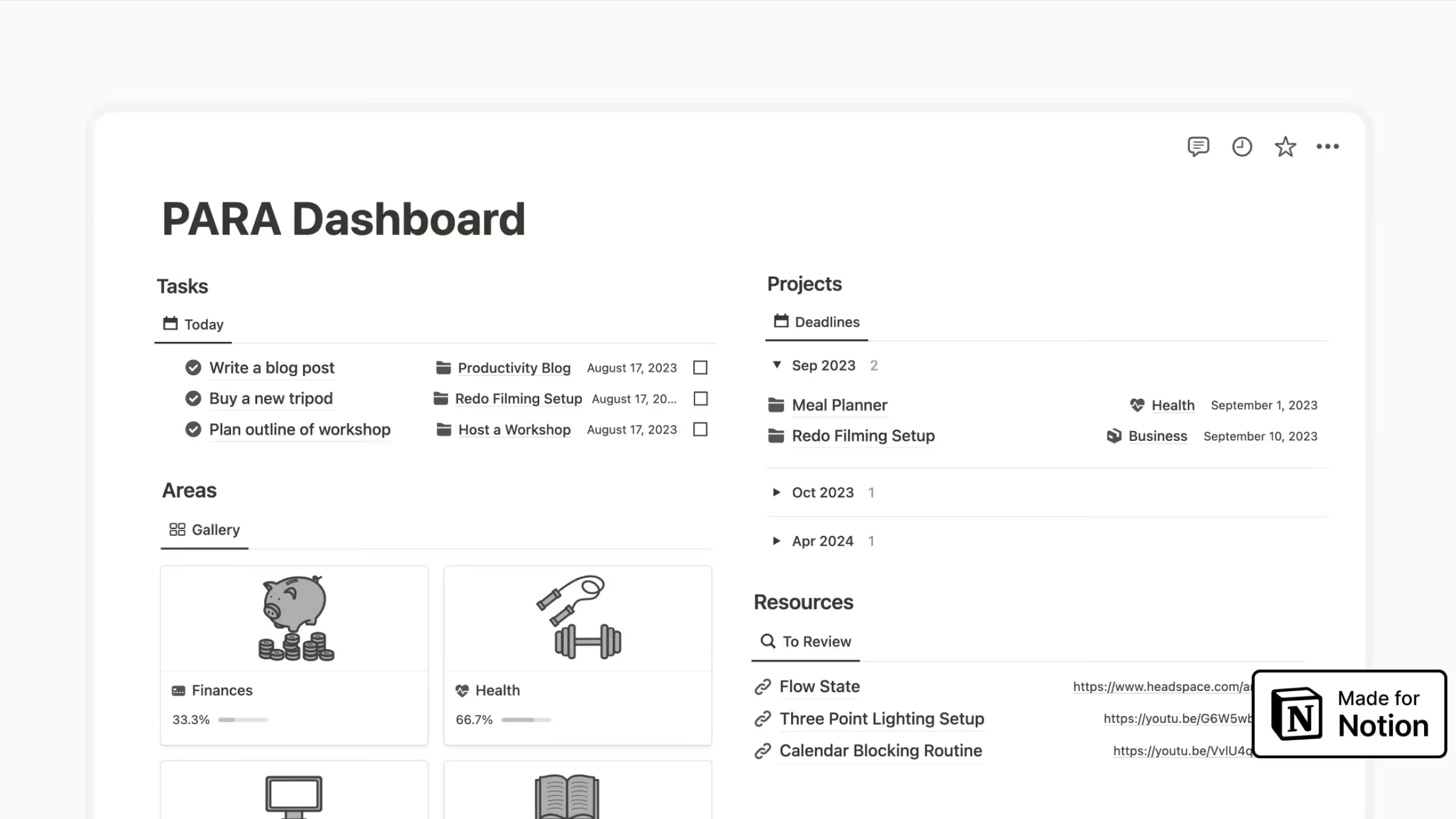
3. PARA Method Template
A clean, minimalist template designed for people who value simplicity. The layout focuses on helping you organize life areas, projects, tasks, and resources without visual clutter.
This template works well for beginners who want to try PARA without committing to a complex system. The straightforward design makes it easy to understand how the four categories work together.
Key Features:
- Minimalist design: Clean layout that emphasizes content over decoration
- Life areas focus: Encourages you to define your key responsibilities first
- Task breakdown structure: Helps you turn projects into actionable steps
- Resource organization: Dedicated space for articles, videos, and reference materials
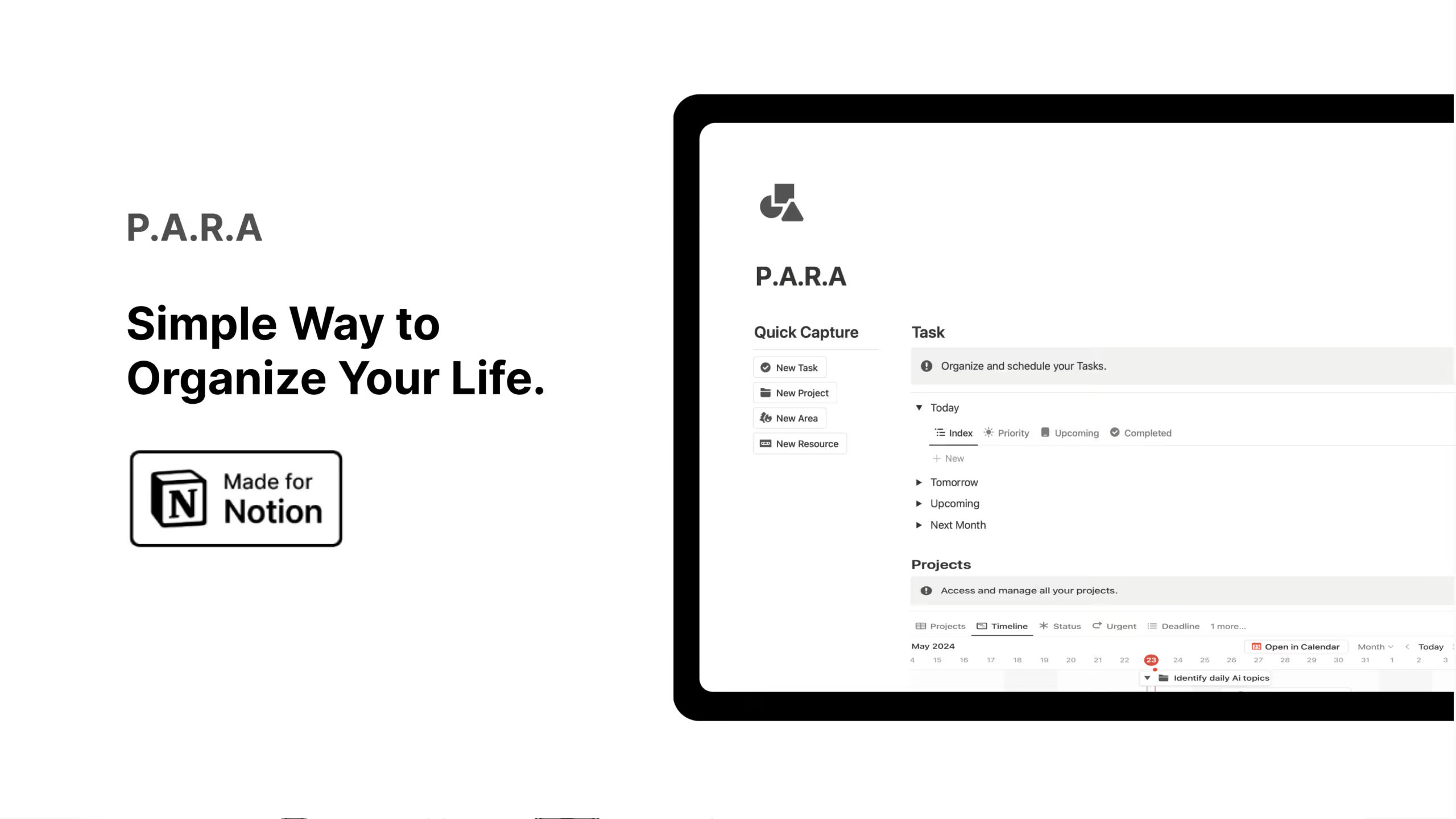
4. PARA Dashboard in Notion
A pre-designed workspace that includes the complete PARA structure with linked databases and multiple views. The template helps you clarify your focus and build what Forte calls a "second brain" of organized knowledge.
The dashboard provides dedicated sections for each PARA category, making it easy to navigate between active projects and stored resources.
Key Features:
- Linked database views: Navigate easily between Projects, Areas, Resources, and Archive
- Multiple viewing options: See your information in different layouts depending on your needs
- Focus on clarity: Designed to help you understand what needs attention right now
- Lifetime access: One-time purchase with included updates
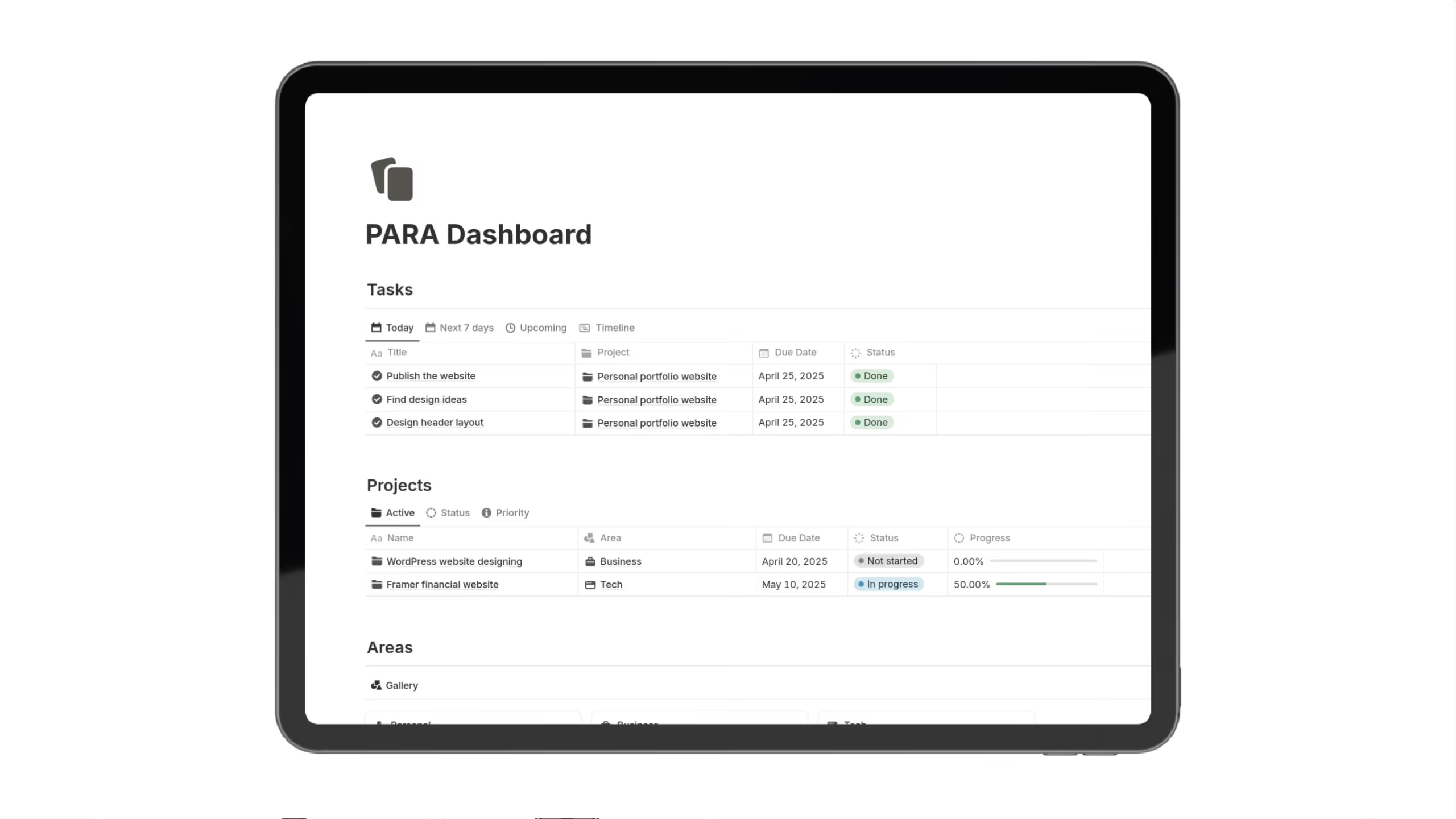
5. PARA Dashboard Notion Template
This template adds practical features to the standard PARA structure, including quick-add buttons, daily reminders, and light/dark mode support.
The personal companion feature helps you stay on track by surfacing daily tasks and overdue items. The navigation menu makes switching between sections fast and intuitive.
Key Features:
- Quick add functionality: One-click buttons to add tasks, projects, resources, and notes
- Daily and overdue reminders: Built-in system to help you stay on top of deadlines
- Light and dark mode: Comfortable viewing in any environment
- Smooth navigation: Easy switching between all PARA sections
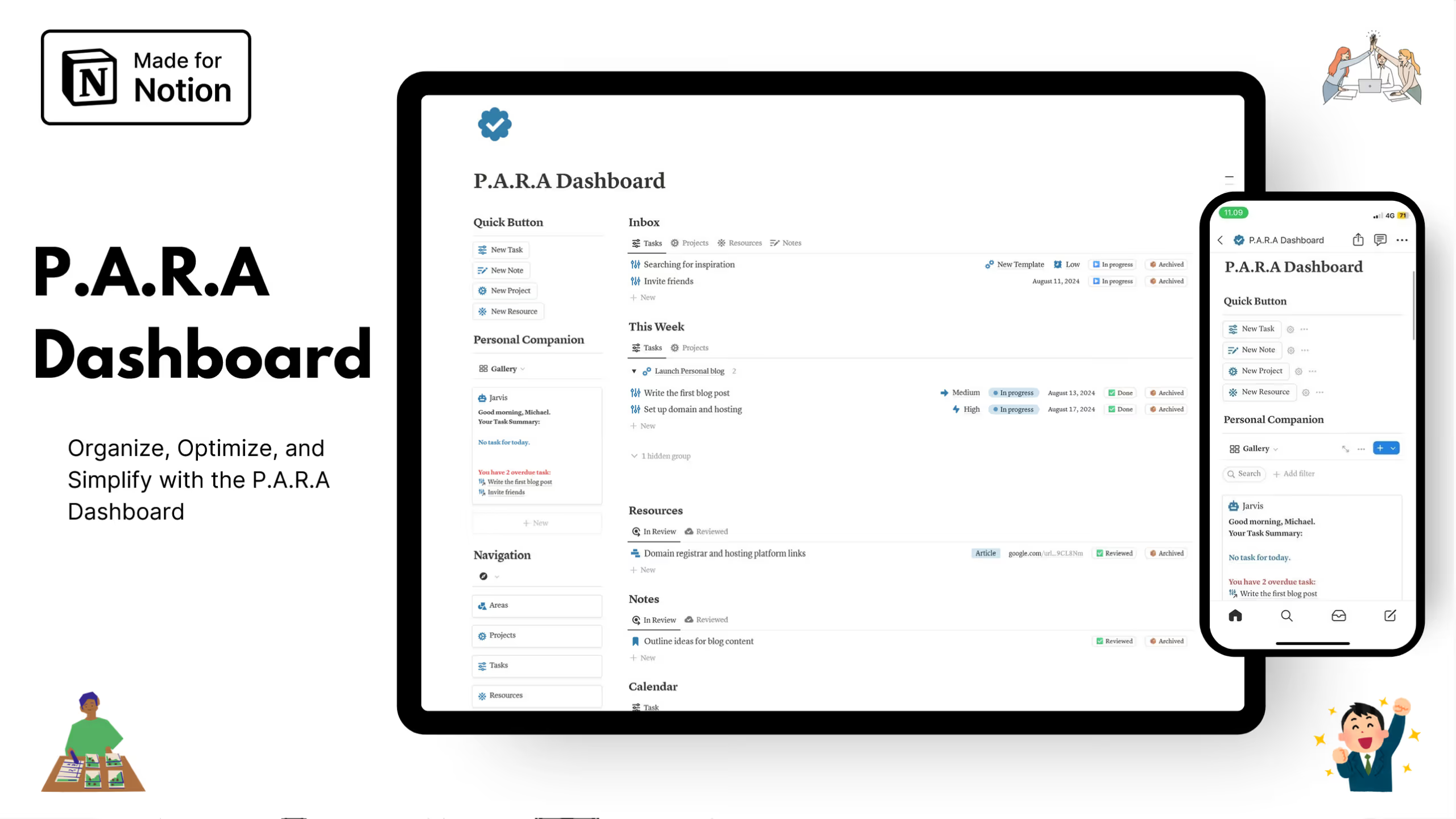
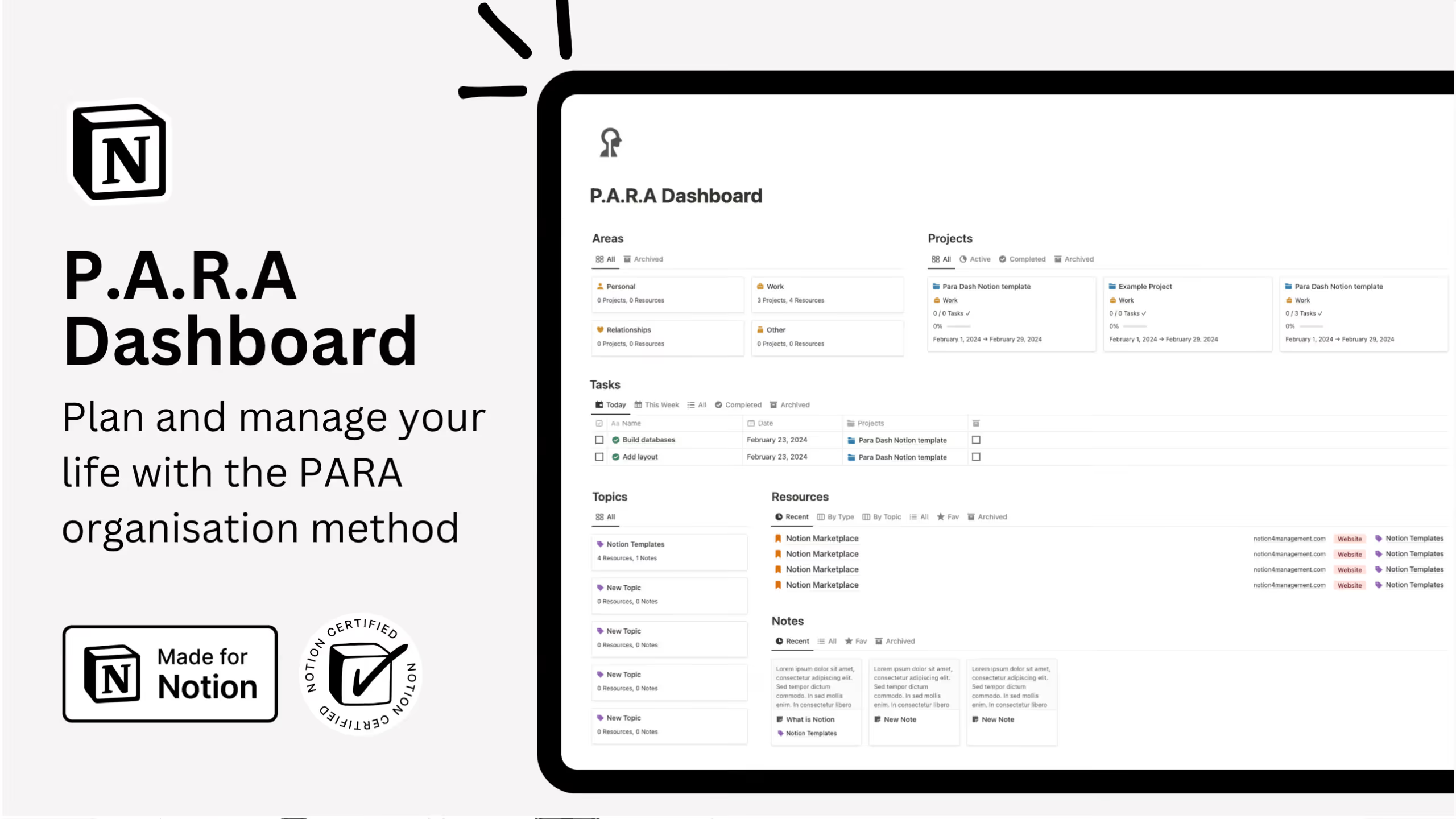
6. Notion P.A.R.A Dashboard
Built on the organizational system from Building a Second Brain, this template helps you manage projects, tasks, and resources with a focus on the Second Brain methodology.
The template includes space for capturing and organizing resources and notes, grouped by areas and topics. It emphasizes the connection between your projects and the reference materials that support them.
Key Features:
- Second Brain integration: Follows the methodology from Tiago Forte's book
- Notes organization: Group resources and notes by areas and topics
- Task management: Track what needs to happen next for each project
- Free download: Available at no cost with over 3,000 users
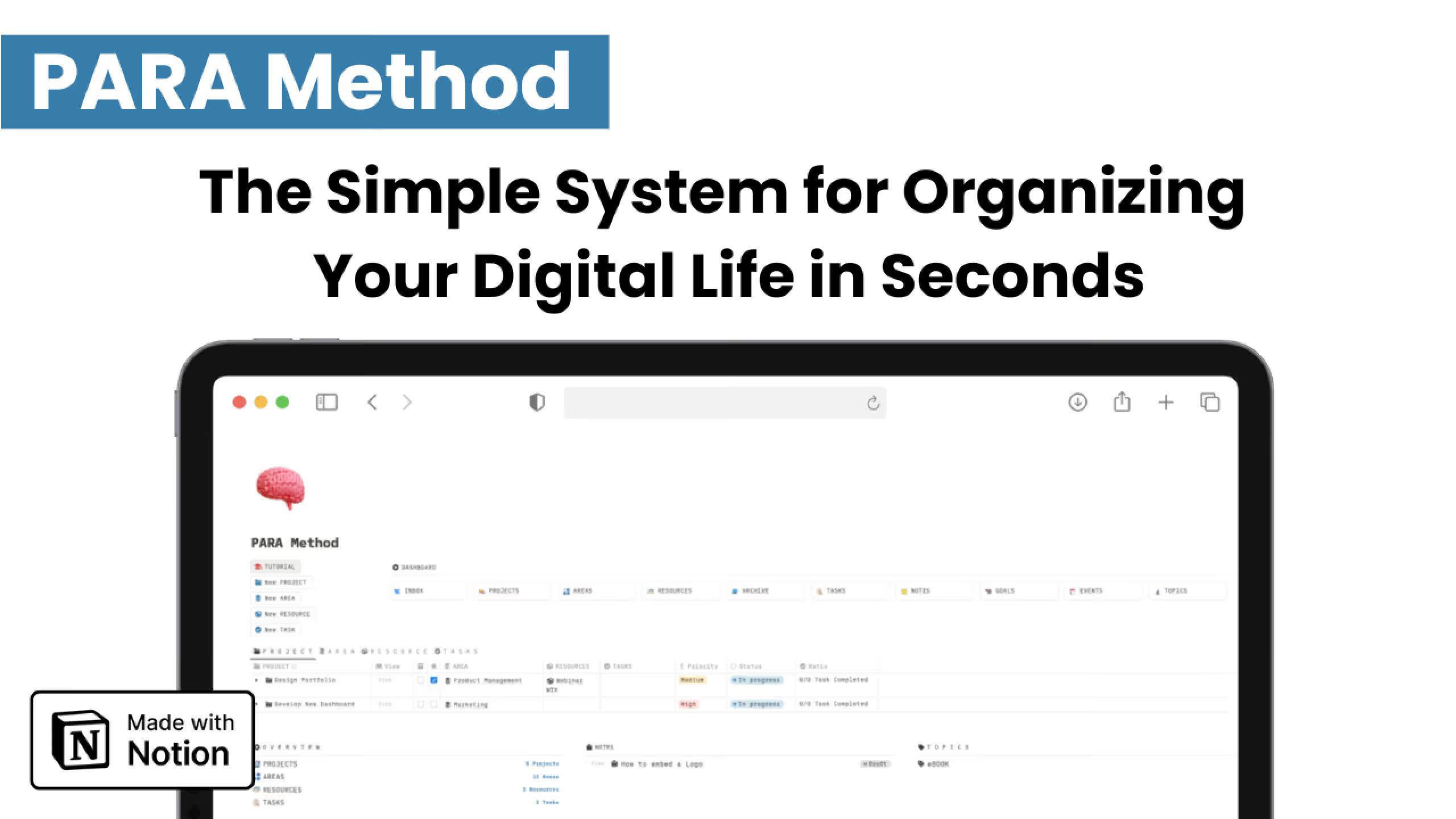
7. PARA Method Notion Template
A comprehensive system that goes beyond basic PARA to include event tracking and goal management. The template includes video guides and instructions to help you get started quickly.
Each folder in this system holds information with a different level of actionability, and the interconnected databases make the structure more flexible and powerful.
Key Features:
- Video tutorials included: Step-by-step guides help you set up in under 10 minutes
- Customizable views: From Kanban boards for projects to gallery views for resources
- Integrated task management: Break projects into actionable tasks with priorities and deadlines
- Templates and prompts: Pre-made components speed up data entry
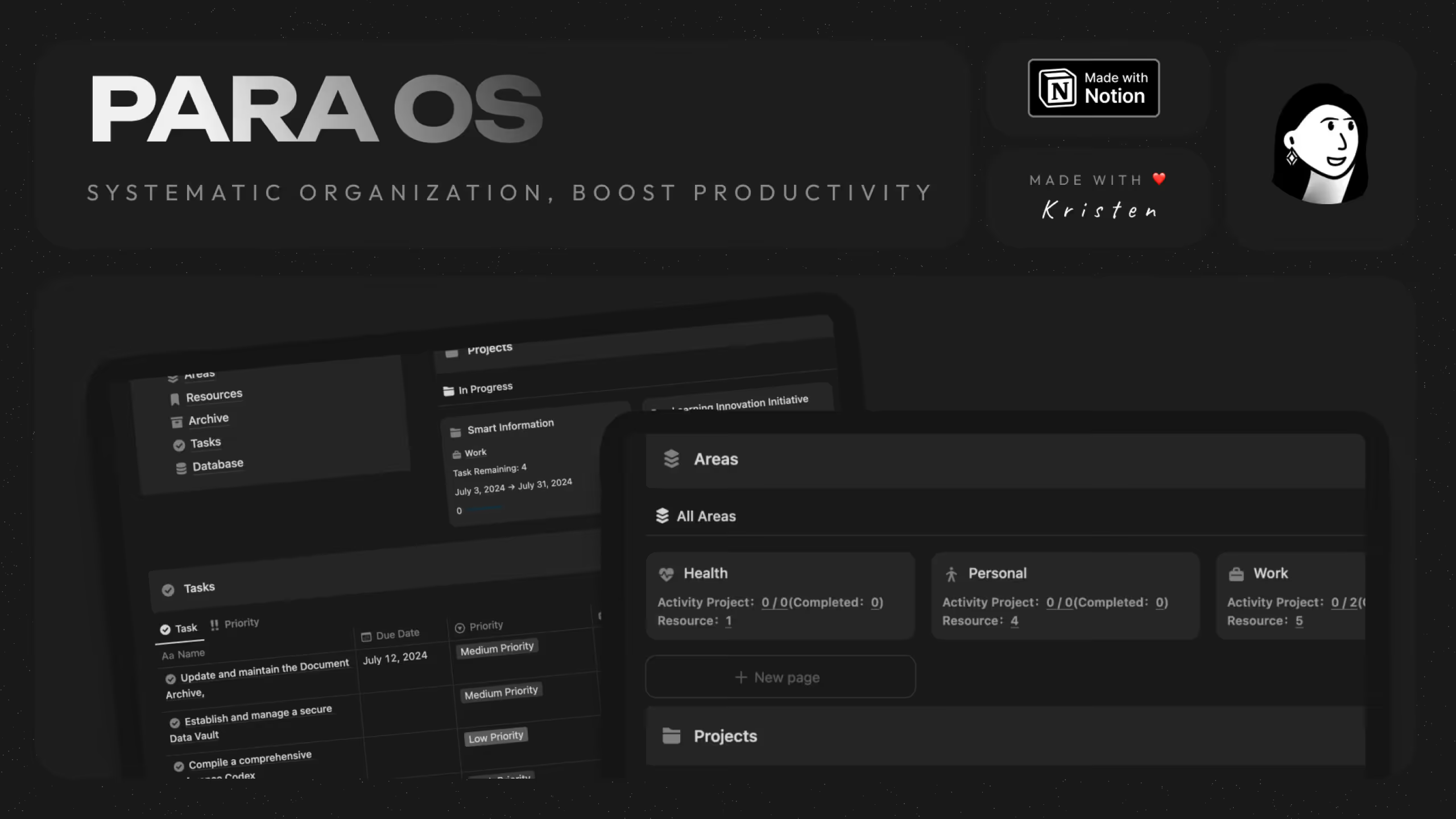
8. Notion PARA OS
A streamlined template focused on simplicity and efficiency. The clean design helps reduce stress rather than add to it, making it ideal for people who feel overwhelmed by complex productivity systems.
Each feature serves a clear purpose: organize tasks, manage areas, oversee projects, store resources, and archive completed work.
Key Features:
- Task management: Handle personal tasks and to-dos in one place
- Area organization: Group information and tasks by themes or projects
- Project integration: Combine tasks, documents, and resources for each project
- Resource library: Store documents, links, and media with easy access
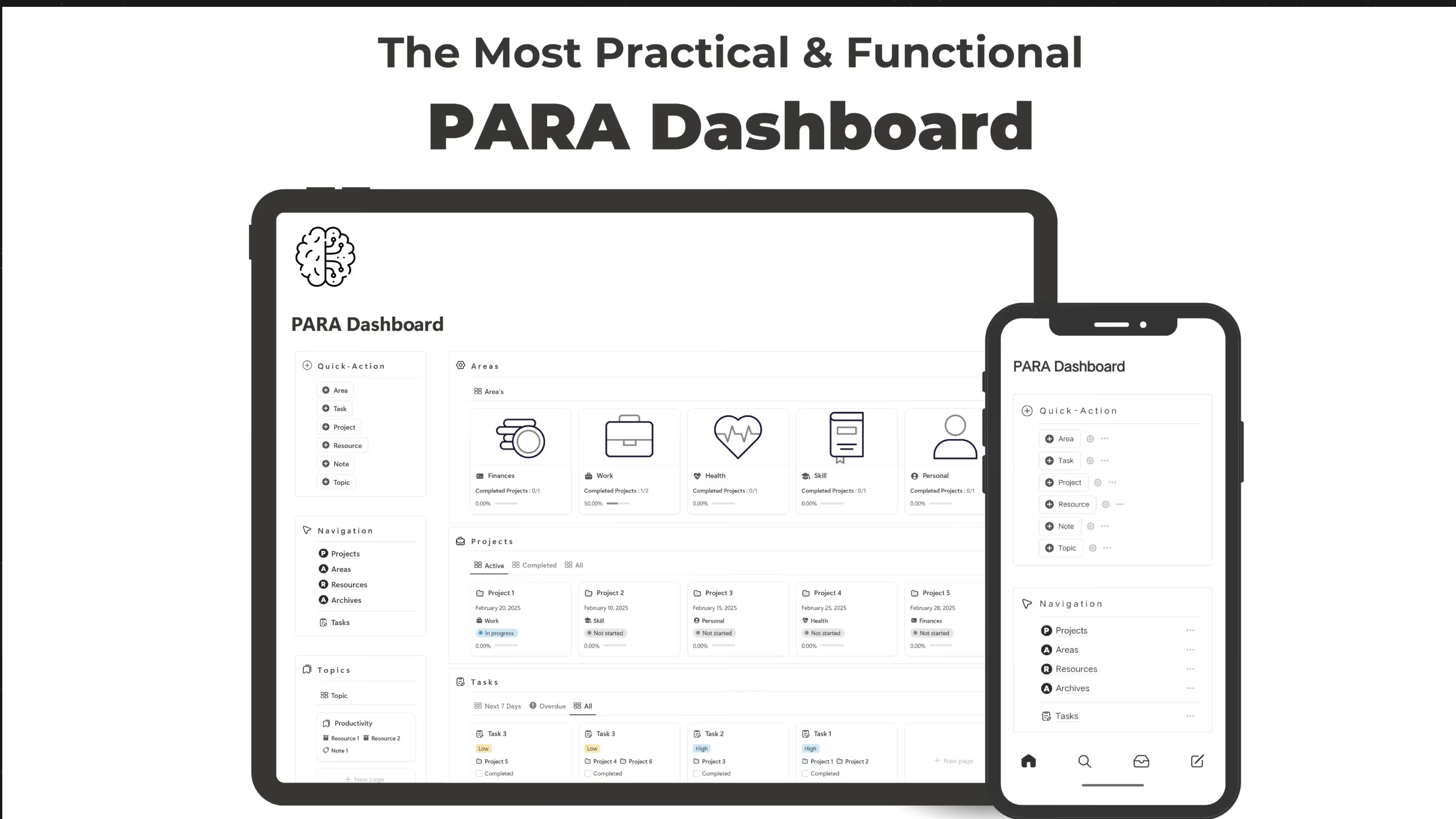
9. Notion PARA Dashboard
A free second brain template with a full PARA structure plus additional features like task timelines and topic-based note organization.
The dashboard connects all your goals, notes, and references without losing track of anything. The structure makes retrieving useful knowledge just as easy as capturing it.
Key Features:
- Projects dashboard: Track active, completed, and upcoming projects at a glance
- Life areas management: Manage work, health, finances, personal, and more
- Resource vault: Save and tag articles, tools, PDFs, and links in one place
- Task and timeline views: Plan your week with calendar and priority task views
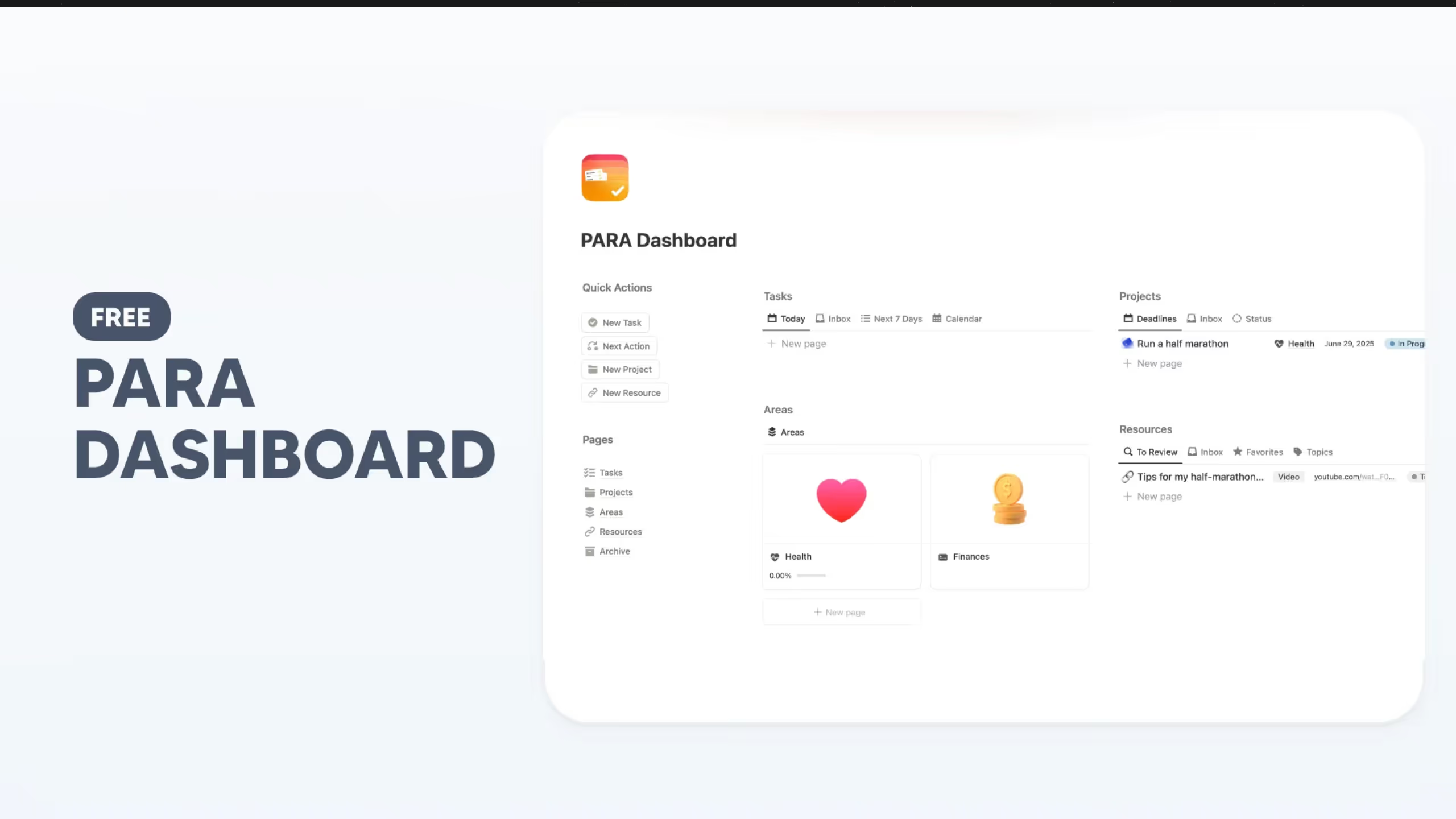
10. Free PARA Dashboard in Notion
A precisely designed template built around the PARA method with an elegant, simple interface. The clean aesthetic makes daily use pleasant without sacrificing functionality.
The template includes all four core databases with archive functionality and works well for both professionals and beginners starting their productivity journey.
Key Features:
- Elegant design: Clean interface that balances beauty with functionality
- Complete PARA structure: All four categories with linking and archiving
- Easy archiving: Check a box to move items out of active view
- Free access: No cost to download and use
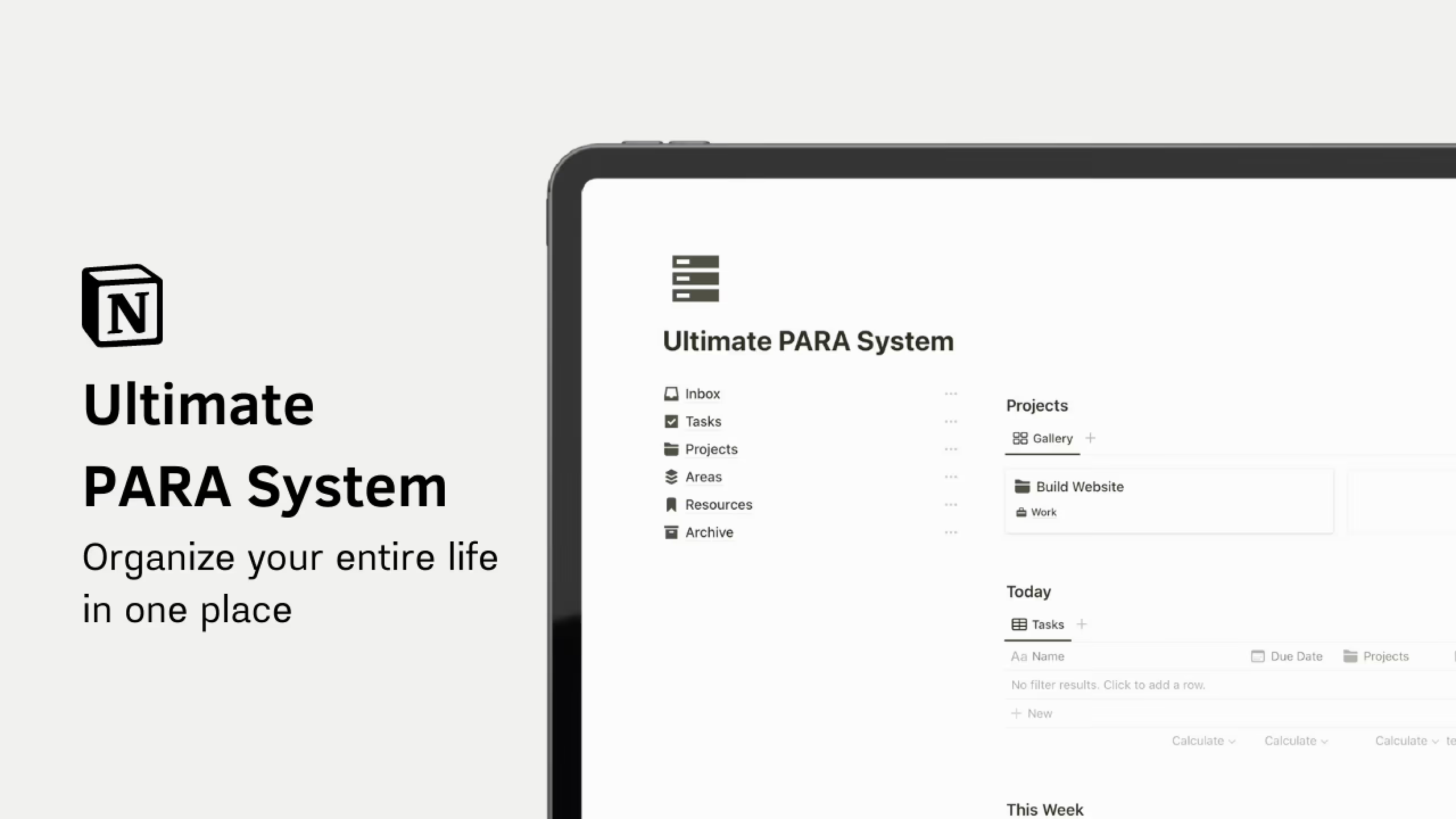
11. Ultimate PARA System Notion Template
A minimalist template that includes the essentials: PARA structure, task manager, inbox for capturing ideas, and space for storing resources.
The system helps you keep track of your life, turn tasks into results, and capture thoughts on the go without getting lost in complex features.
Key Features:
- Complete PARA method: Projects, Areas, Resources, and Archive sections
- Built-in task manager: Manage what needs to get done alongside your organization system
- Capture inbox: Save ideas and information quickly for later processing
- Lifetime updates: Access improvements as the template evolves
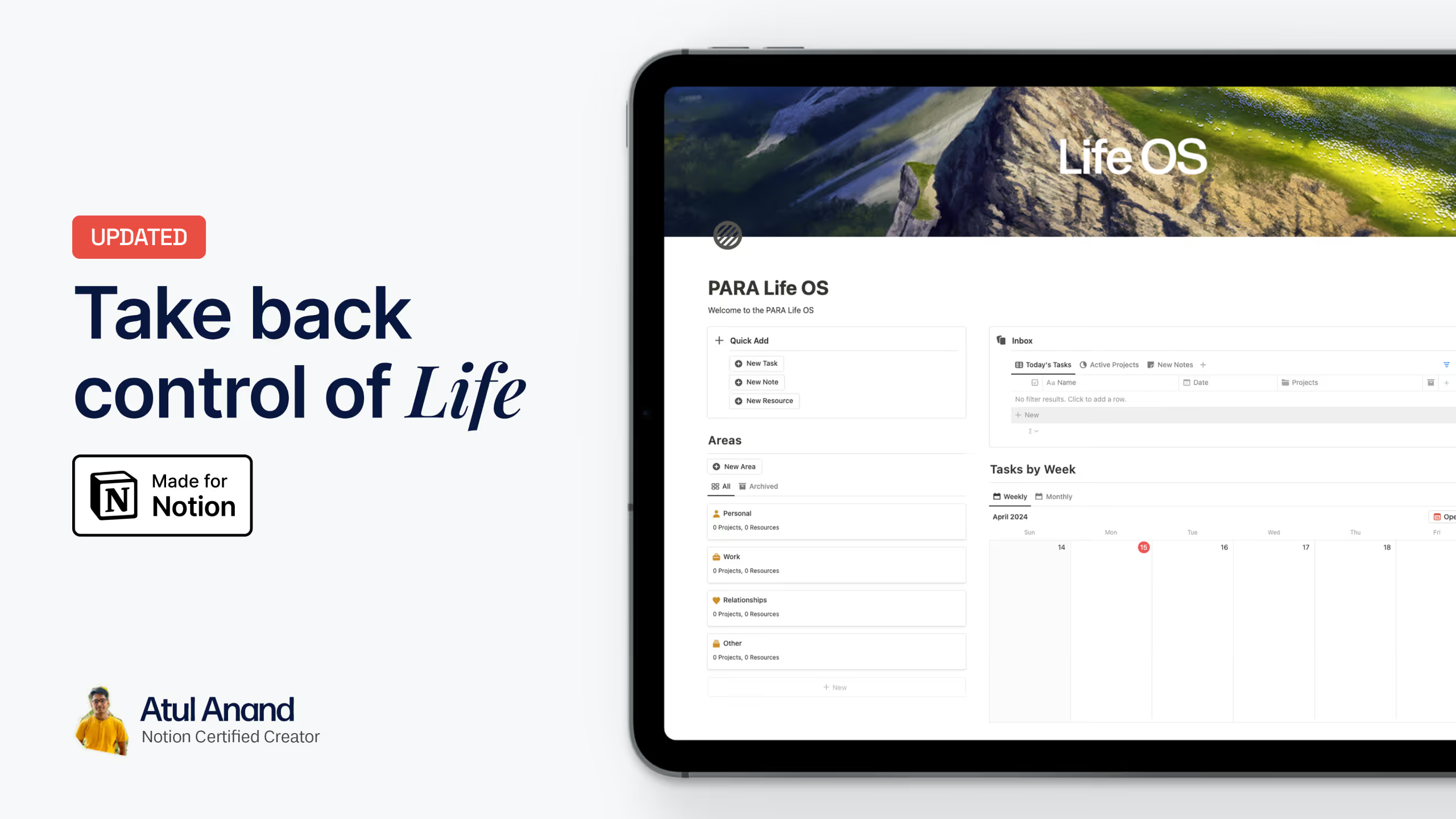
12. Notion PARA Life OS
Inspired directly by Tiago Forte's book The PARA Method, this template positions itself as a tool for transformation, not just organization.
The system aims to help you maximize productivity, enhance focus, achieve goals, and unlock potential. It treats PARA as a lifestyle upgrade rather than just a filing system.
Key Features:
- Book-based methodology: Built on principles from The PARA Method book
- Focus on transformation: Designed to change how you work and live
- Goal achievement structure: Helps you turn aspirations into accomplishments
- Productivity maximization: Streamlines workflow and eliminates distractions
What Is the PARA Method?
PARA is an organizational system that sorts everything in your life into four categories based on how actionable it is. The acronym stands for Projects, Areas, Resources, and Archives.
Tiago Forte developed this method while working as a productivity coach in Silicon Valley. He noticed that traditional filing systems organized by subject (like you learned in school) completely fall apart in real life. Nobody has time to dig through a folder called "Psychology" to find one specific piece of information.
Instead, PARA organizes information by actionability. Things you need right now stay front and center. Everything else moves to the background until you need it.
Here is the basic structure:
Projects contain short-term efforts with a clear end goal and deadline. Launching a website, planning a vacation, writing a report. These are things you can check off as "done."
Areas represent ongoing responsibilities without a finish line. Health, finances, career development, relationships. You maintain these indefinitely.
Resources hold reference materials on topics you find interesting or useful. Articles, courses, research, inspiration. This is your knowledge library.
Archives store anything from the first three categories that is no longer active. Completed projects, old resources, paused areas. Nothing gets deleted; it just moves out of the way.
What's the Difference Between Projects and Areas?
This distinction trips up most people, but it matters a lot for how you organize your work.
A project has a finish line. You can point to a specific outcome and say "this is done." Write the quarterly report. Launch the new product. Plan the birthday party.
An area never ends. You cannot "complete" your health or "finish" your career. You maintain these responsibilities indefinitely, and the work is never truly done.
Here is an easy test: If it has a deadline or a specific deliverable, it is a project. If it is something you need to manage over time with no clear endpoint, it is an area.
For example, "Run a marathon" is a project. "Fitness" is an area. "Renovate the kitchen" is a project. "Home maintenance" is an area.
Projects usually belong to areas. Your project to "create a budget spreadsheet" falls under your "Finances" area. Your project to "write a blog post about productivity" falls under your "Content" or "Work" area.
What's the Difference Between Areas and Resources?
Areas require your active involvement. You have responsibilities and standards to maintain. If things slip, there are real consequences in your life.
Resources are passive reference materials. They support your projects and areas, but they do not demand anything from you. You collect them because they might be useful, not because you have obligations attached to them.
Your "Marketing" area might include campaigns you are running and metrics you track. Your "Marketing Resources" folder contains articles about marketing tactics, competitor research, and inspiration files. One requires action; the other is just information.
Is PARA the Same as Building a Second Brain?
Not exactly, but they work together.
Building a Second Brain (BASB) is Tiago Forte's broader methodology for capturing, organizing, and expressing ideas. It covers how to take notes, how to process information, and how to use your collected knowledge to create new things.
PARA is the organizational framework within that larger system. Think of BASB as the complete philosophy and PARA as the filing cabinet that makes it work.
You can use PARA without adopting the entire Second Brain approach. Many people just want a better way to organize their Notion workspace, and PARA delivers that without requiring you to change how you take notes or consume information.
According to Forte Labs, BASB builds on and extends Getting Things Done principles to encompass not just tasks, but all digital information: notes, files, bookmarks, photos, quotes, and research.
Can You Combine PARA with GTD?
Absolutely. Many productivity enthusiasts use both systems together.
Getting Things Done (GTD) by David Allen focuses on capturing tasks and moving them through a workflow until completion. It handles what you need to do.
PARA handles where you put everything. It organizes your information and reference materials around the work you are doing.
The two systems complement each other well. GTD tells you to capture everything and process it regularly. PARA gives you a clear structure for where those captured items should live.
One practical approach: Use GTD principles for managing your tasks database in Notion, with contexts and next actions. Use PARA for organizing everything else: your projects, areas, resources, and archived materials.
Some Notion PARA templates already combine these approaches. They include GTD-style task management features alongside the PARA organizational structure.
How Do I Set Up PARA in Notion Step by Step?
You do not need a template to use PARA in Notion. Here is how to build your own system from scratch.
Step 1: Create Your Four Main Databases
Start with four Notion databases, one for each PARA category. You can use pages instead, but databases give you more flexibility with views, filters, and relations.
Create these databases:
- Projects (with properties for status, deadline, area, and progress)
- Areas (with properties for description and related projects)
- Resources (with properties for type, topic, and source)
- Archive (or add an "Archived" checkbox to each database)
Keep all four databases in one master page for easy access. You will create different views later to see the information in context.
Step 2: Define Your Life Areas First
Before adding projects or resources, list your areas of responsibility. These are the ongoing parts of your life that need attention.
Common areas include:
- Work (or specific roles like Marketing, Engineering, Management)
- Health and fitness
- Finances
- Relationships and family
- Personal development
- Home maintenance
- Side projects or hobbies
Be specific but not excessive. Most people have between five and twelve areas. If you have more, some might actually be projects in disguise.
Step 3: Add Active Projects Under Each Area
Now list the projects you are currently working on. Remember, projects have clear outcomes and deadlines.
For each project, identify:
- The specific outcome (what does "done" look like?)
- The deadline or timeframe
- Which area it belongs to
- The current status
Do not add every project you might ever do. Focus on what is active right now. Future projects can wait in a "Someday" list until you are ready to start them.
Step 4: Build Your Resource Library
Add resources as you encounter them. You do not need to import everything at once.
Organize resources by topic rather than by source. A great article about marketing goes in your marketing resources, not in a folder called "Articles."
Include:
- Articles and blog posts
- Books and book notes
- Courses and tutorials
- Templates and tools
- Inspiration and examples
Link resources to relevant projects and areas so you can find them when you need them.
Step 5: Set Up Your Archive System
Decide how archiving works in your system. Two common approaches:
Option 1: Create a separate Archive database and move items there when complete.
Option 2: Add an "Archived" checkbox to each database and filter archived items out of your main views.
The second option is often easier because you do not need to maintain relations across databases. Archived items keep their connections; they just disappear from active views.
Set a reminder to archive completed projects regularly. A weekly review works well for this.
Can I Use PARA for Both Work and Personal Life?
Yes, and Forte recommends it. Using one system for everything reduces the mental load of maintaining separate organizational structures.
You have two main options:
Single system approach: Everything lives in one PARA setup. Work projects and personal projects share the same database. Areas cover both professional responsibilities and personal life domains.
Separated but parallel: Create two separate PARA systems with the same structure. One for work, one for personal. This works well if your workplace restricts what goes in shared tools or if you prefer strict separation.
Most people find the single system easier to maintain. When you sit down to work, you see everything that needs attention. No switching between apps or forgetting about personal tasks during work hours.
If you use the single system approach, distinguish between work and personal items using tags, properties, or prefixes. Your "Work" area and "Personal" area can each contain their own projects without mixing together.
Liked this? I've got more Notion templates that might help. They're all ready to use, no setup required.
Frequently Asked Questions
How do I know if something is a Project or an Area?
Ask yourself: does it have an end date or specific deliverable? If yes, it is a project. If no, it is an area. Projects can be completed and checked off. Areas are ongoing responsibilities you maintain indefinitely. "Run a marathon" is a project. "Fitness" is an area. When unsure, trust your gut and pick one. You can always move it later.
How often should I review my PARA system?
Weekly. Spend 15 to 30 minutes checking active projects, archiving completed ones, and clearing your inbox. Some people also do a broader monthly review to assess whether their areas and project load still make sense. Consistency matters more than perfection. A quick weekly review you actually do beats an elaborate system you skip.
What is the difference between archiving and deleting in PARA?
Archiving keeps items accessible but out of your active view. Deleting removes them permanently. Archive completed projects, inactive areas, and outdated resources so you can reference them later if needed. Only delete when you are certain you will never need something again. When in doubt, archive.
Where do my daily tasks go in PARA?
Tasks live inside your projects, not as a separate PARA category. Create a tasks database that links to your projects database. Use filtered views to see tasks due today or this week. For standalone tasks that do not belong to any project, use an inbox or quick tasks section. The key is keeping tasks connected to the projects they support.